 NEWS
NEWS
Apple's iOS 12 Update is Causing Sporadic Issues with iPhone Charging
 09/30/2018
 3833
3833
Multiple reports are suggesting that iOS 12 may have a bug, causing periodic and random issues with devices not charging when plugged into a power, or placed on a wireless charging pad without user interaction.
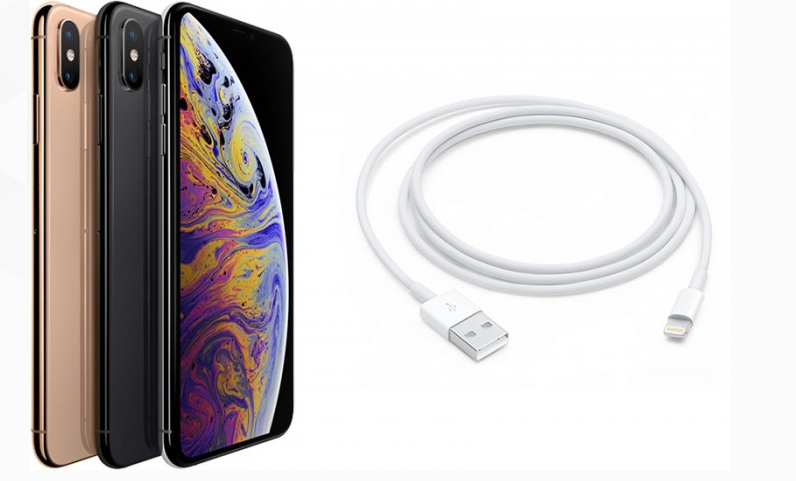
At Apple's discussion board, there are currently 108 users commenting on a potential problem with either the iPhone XS or iOS 12. The fault occurs when the user connects a Lightning cable to the charge port using a common wall charger, or place the device on a Qi charging pad.
Most of the time, the iPhone functions as expected, and immediately begins charging the phone.
However, on occasion, users plugging the phone will neither get a charge symbol, nor the noise that the device plays when it begins charging. Some users were able to get the phone to begin to charge by plugging it in, waiting between 10 and 15 seconds, and waking the phone —but not necessarily unlocking it.
"If i haven't interacted with the phone for some time, it becomes unresponsive to a charger being plugged in," said one user. "But if I unplug then lift it and start using it, it will recognize the charger."
UnboxTherapy tested a variety of iPhone XS units in studio and found they could repeat the problem. They tested nine separate iPhone XS and XS Max phones and were able to demonstrate the issue a handful of times. However, AppleInsider has not yet gotten the issue to manifest with an iPhone XS Max, iPhone X, or iPhone 8 Plus running iOS 12 connected to USB-A to Lightning or USB-C to Lightning plugged into either a computer, a wall adapter, or any one of a variety of Qi charging pads.
However, an iPhone 7 and 12.9-inch first-generation iPad Pro have both manifested the problem once each during some testing on Saturday evening.
The issue may be related to USB restricted mode, a feature that Apple developed to help secure data on the phone against devices that try and download a phone's data for law enforcement or nefarious purposes. USB restricted mode shouldn't be interfering with a simple wall charger, but the interaction that users are noticing, lifting the phone in order to get it to charge after it's been left idle, seems related to the need to unlock a device to get it to connect to a peripheral through Lightning.
The issue may also be manifesting elsewhere. Belkin's has confirmed that its original PowerHouse and Valet charging docks are incompatible with the iPhone XS family. Users attempting to use those devices are finding that the iPhone simply will not charge when placed on the device. Belkin has noted on the product page that the devices aren't compatible with the iPhone XS family, or the forthcoming iPhone XR —but has not elaborated as to why.
AppleInsider has reached out to Apple for comment on the matter.
Source: appleinsider










