
NEWS

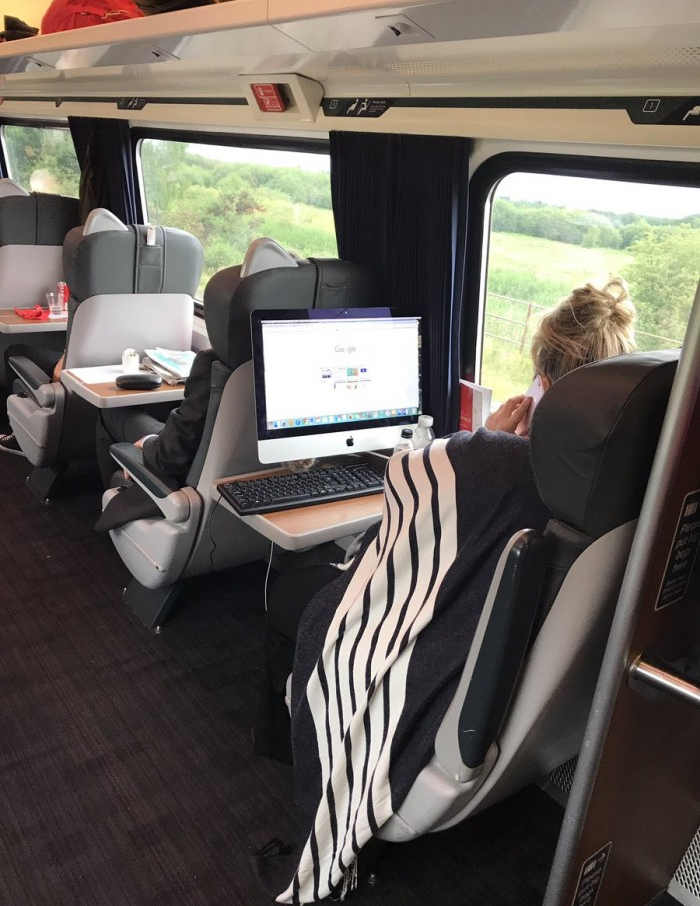
Passenger Shows The Surprising Portability of iMacs By Using One On A Train

07/10/2017

3742

Today’s laptops, tablets, and 2-in-1s might be mobile powerhouses, but there are those times when you just can’t beat a desktop. One would imagine, however, that traveling on a train limits your computer use to portable devices, though the woman with the iMac in the picture above probably disagrees.


The photograph was posted on Twitter by Dave Hill, who works for VMware Cloud Services Business Unit. Originally from Middlesbrough in the UK, Hill was visiting England from his Texas home for a meeting when he spotted the Apple user.


"It was the Virgin East Coast Darlington - London on Tuesday 14:58 in First Class. I had just been to the vestibule and walked past and saw the full iMac computer on the table,” he told the Telegraph.

Passenger Shows The Surprising Portability of iMacs By Using One On A Train


"I work for a software company, and been traveling on the trains for about 15 years, I have never seen anything like it. The lady had a full wired keyboard and mouse."


It seems the passenger wanted to bring all their home comforts into the Virgin carriage; she’s also got a blanket with her.


In fairness to the lady in question, many people on Twitter commented that bringing their desktops onto a train is something they’ve considered in the past. And at least it’s an all-in-one iMac that could fit in some, admittedly hefty, baggage; try setting up a PC with a Phanteks Enthoo Elite case and 34-inch monitor inside a train carriage – now that would be impressive/stupid.


Source: thespot

Windows
Mac OS
iOS
Linux
3uTools
Win 64-bit For this device
V9.0 2025-11-11
Download
Win 32-bit For this device
V9.0 2025-11-11
Download
3uTools
Intel Chip How to Identify Chip Type
V9.0 2025-12-02
Download
Apple Silicon
V9.0 2025-12-02
Download
How to Identify Chip Type
1.  Click the Apple icon in the top-left corner of the screen and select About This Mac.
2.  Check the Processor or Chip field to determine if it is "Intel" or "Apple".
Please use the 3uTools PC client to install the iOS client:
1、 Install either the Windows or Mac version of 3uTools on your computer
2、 Open the PC client and connect your device to the computer via USB cable
3、 After the connection is successful, wait for the computer to automatically install the mobile app for the device, or locate “Install Mobile App” on the computer and manually click to install.
3uTools
deb file
V3.01 2025-11-20
Download
rpm file
V3.01 2025-11-20
Download
Windows
Windows
iOS
iOS
Android
Android
TV
TV
3uAirPlayer
Win 64-bit For this device
V6.0.2 2025-11-19
Download
Win 32-bit For this device
V6.0.2 2025-11-19
Download
iOS Device Mirroring (No App Required)
1、 Install 3uAirPlayer on the Windows PC
2、 Open Control Center and select Screen Mirroring
3、 From the list, choose your PC to start mirroring
4、 Or connect your iOS device to the PC via USB to begin mirroring
Scan to get "3uAirPlayer" App
3uAirPlayer TV V1.0.18
2025-11-28
TV System Requirements: Android 7.0 or later
Download the TV installation package, copy it to a USB drive, insert it into your TV or set-top box, then select the file from the home screen to install.




