 NEWS
NEWS
iPhone Duo Shows How Apple Could Improve iPad Multitasking
 09/14/2026
 35
35
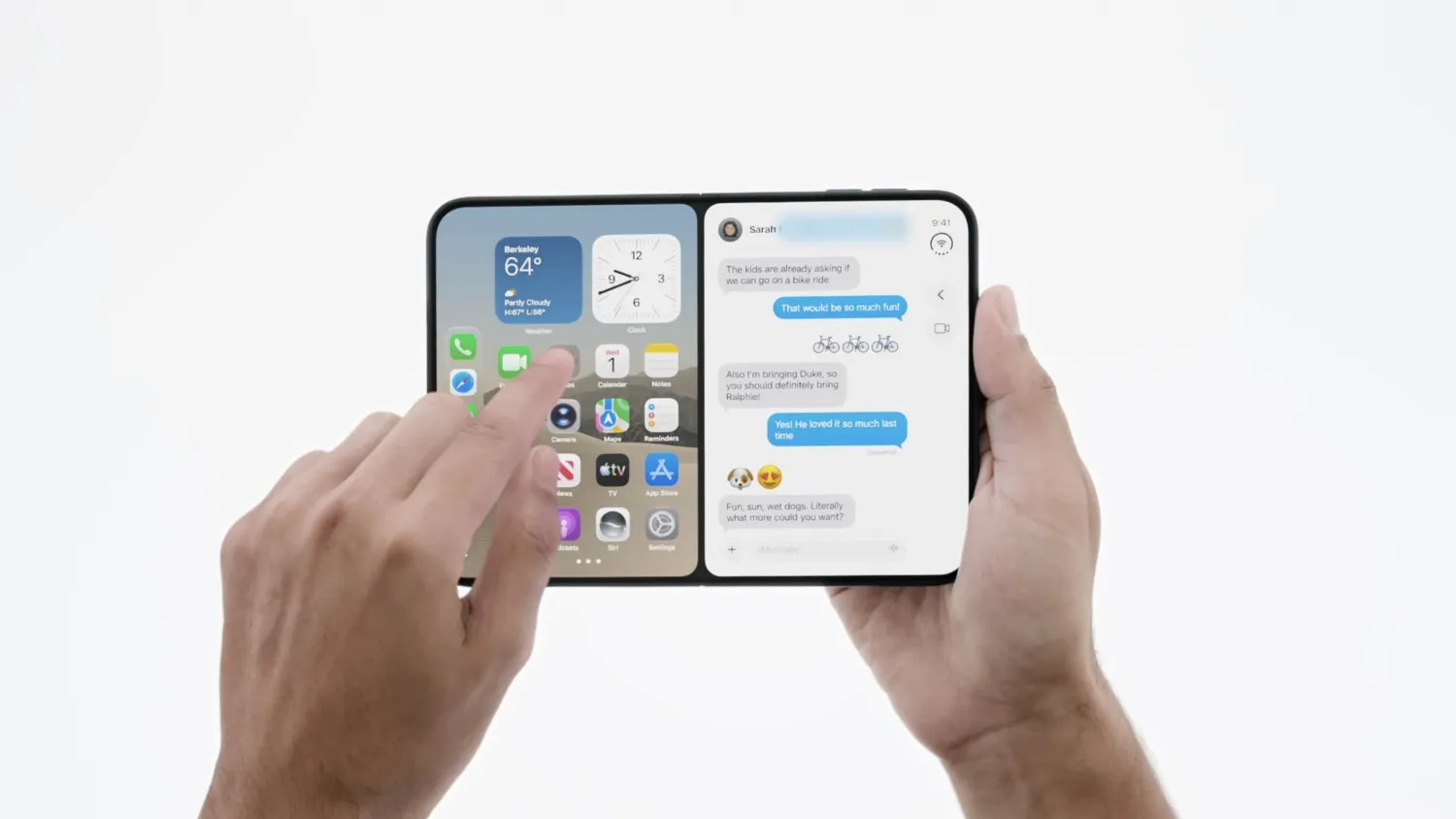
Apple has unveiled its latest iPhone lineup, including its first foldable smartphone, the iPhone Duo. While the new foldable brings an impressive hardware design, its software experience may also offer a glimpse at how Apple could improve multitasking on the iPad.
iPad Multitasking Has Become Too Complicated
Since the introduction of iPadOS 26, Apple's approach to multitasking has become increasingly focused on windowing.
Windowed apps provide more flexibility, but they are not ideal for every situation. Users who prefer a simpler experience are essentially forced to choose between full-screen apps and the windowing system.
Apple later brought back features such as Split View and Slide Over, but they still rely heavily on the underlying windowing interface.
For users who simply want to put two apps side by side, the experience can feel unnecessarily complicated — especially on smaller devices such as the iPad mini.
iPhone Duo Takes a Simpler Approach
The iPhone Duo demonstrates a more straightforward way to handle multitasking.
Users can place an app on one half of the display while keeping the rest of the Home Screen visible. This makes it easy to select another app without first opening a separate window-management interface.
Apple also allows users to save apps as a pair, making it easier to return to the same multitasking setup later.
Perhaps more importantly, the iPhone Duo can display a video alongside another app in split-screen mode. This could be particularly useful on the iPad mini, whose display size is relatively close to that of the iPhone Duo.
iPadOS 27 Still Takes an All-or-Nothing Approach
Despite the new multitasking experience on the iPhone Duo, iPadOS 27 continues to rely heavily on windowing.
That approach makes sense on larger iPads, particularly when paired with a Magic Keyboard. However, it can feel unnecessarily complicated on the iPad mini, where there is much less screen real estate to manage multiple windows.
A simpler split-screen system could give users more flexibility without removing the more advanced windowing features.
The iPhone Duo Could Be a Blueprint for the iPad
Apple doesn't necessarily need to replace windowing on the iPad.
Instead, the company could offer two multitasking modes: a simple split-screen experience for users who want to quickly run two apps side by side, and the existing windowing system for those who need more advanced multitasking.
The iPhone Duo shows that Apple has already developed a simpler approach. Bringing a similar system to iPadOS could make multitasking feel much more intuitive, particularly for iPad mini users and people who don't use a Magic Keyboard.
At its core, iPadOS is still based on iOS, so adapting some of the iPhone Duo's multitasking ideas shouldn't require Apple to completely reinvent the platform.
iPhone Duo Could Influence the Future of iPadOS
The iPhone Duo isn't just interesting because of its foldable hardware. Its software experience also demonstrates how Apple can rethink multitasking for smaller screens.
Apple appears to have found an elegant solution for managing multiple apps on a foldable iPhone. Now, the question is whether that same philosophy will eventually make its way to the iPad.
For many iPad users, the ideal solution may not be more windows, but simply better multitasking.
Source: 9to5Mac