
TUTORIALS

SmartRotate: a Video-Friendly Rotation Lock for Your iPhone

03/21/2019

6612

While iOS’ built-in Rotation Lock feature can be an asset at times, there are also instances where it tends to be a real pain in the fanny. Case in point: when you begin watching a video and your handset won’t rotate into landscape mode until you manually turn Rotation Lock off.


iOS developer LaughingQuoll understood the problem with this implementation by Apple and set out to come up with a better solution. The result? – A new jailbreak tweak called SmartRotate has now been released.
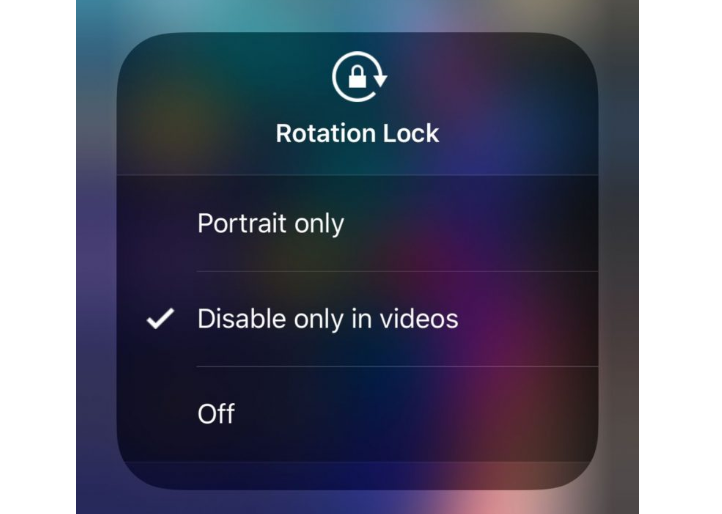

SmartRotate: a Video-Friendly Rotation Lock for Your iPhone


After you’ve installed SmartRotate, you can expand the Rotation Lock toggle in Control Center with a 3D Touch gesture to expose a worthwhile set of options. As shown in the screenshot example above, those options include:


  • Enable Rotation Lock in portrait orientation only

  • Disable Rotation Lock only for video playback

  • Turn Rotation Lock off entirely


For most people, the middle option concerning video playback will be the most obvious choice, and frankly, it’s almost laughable that Apple hasn’t already devised an official solution for this.


Once installed, SmartRotate adds a preference pane to the Settings app where you can configure a few options.


LaughingQuoll designed SmartRotate to be compatible with all jailbroken handsets running iOS 10 through 12, and if you’re interested in trying it, then you can download it from Cydia’s Packix repository for $0.99.


Windows
Mac OS
iOS
Linux
3uTools
Win 64-bit For this device
V9.01 2025-12-27
Download
Win 32-bit For this device
V9.01 2025-12-27
Download
3uTools
Intel Chip How to Identify Chip Type
V9.0 2025-12-02
Download
Apple Silicon
V9.0 2025-12-02
Download
How to Identify Chip Type
1.  Click the Apple icon in the top-left corner of the screen and select About This Mac.
2.  Check the Processor or Chip field to determine if it is "Intel" or "Apple".
Please use the 3uTools PC client to install the iOS client:
1、 Install either the Windows or Mac version of 3uTools on your computer
2、 Open the PC client and connect your device to the computer via USB cable
3、 After the connection is successful, wait for the computer to automatically install the mobile app for the device, or locate “Install Mobile App” on the computer and manually click to install.
3uTools
deb file
V3.01 2025-11-20
Download
rpm file
V3.01 2025-11-20
Download
Windows
Windows
iOS
iOS
Android
Android
TV
TV
3uAirPlayer
Win 64-bit For this device
V6.0.2 2025-11-19
Download
Win 32-bit For this device
V6.0.2 2025-11-19
Download
iOS Device Mirroring (No App Required)
1、 Install 3uAirPlayer on the Windows PC
2、 Open Control Center and select Screen Mirroring
3、 From the list, choose your PC to start mirroring
4、 Or connect your iOS device to the PC via USB to begin mirroring
Scan to get "3uAirPlayer" App
3uAirPlayer TV V1.0.18
2025-11-28
TV System Requirements: Android 7.0 or later
Download the TV installation package, copy it to a USB drive, insert it into your TV or set-top box, then select the file from the home screen to install.



