 TUTORIALS
Retry Failed Face ID Unlocking Attempts Automatically With PearlRetry
 06/20/2018
 6166
6166
Face ID is an incredibly convenient way of unlocking your iPhone X… that is, when it works. The modern security feature sometimes skips out on us when we need it the most, and retrying it requires you to follow cumbersome steps.
Fortunately, iOS developer gilshahar7 has released a new free jailbreak tweak dubbed PearlRetry, which strives to be the ultimate solution to this widespread problem for jailbreakers.
As you may have inferred from the name already, PearlRetry provides iPhone X users with an automatic retry after failing their Face ID recognition attempt.
It’s worth noting that iOS 12 brings similar improvements to the iPhone X unlocking experience, but it still requires interaction from the user. PearlRetry differentiates itself by offering an automatic retry after a failed facial scan, and this spells out added convenience for the average Joe.
PearlRetry adds a preference pane to the Settings app where you can configure a custom delay that the device will wait before Face ID attempts an additional facial scan:
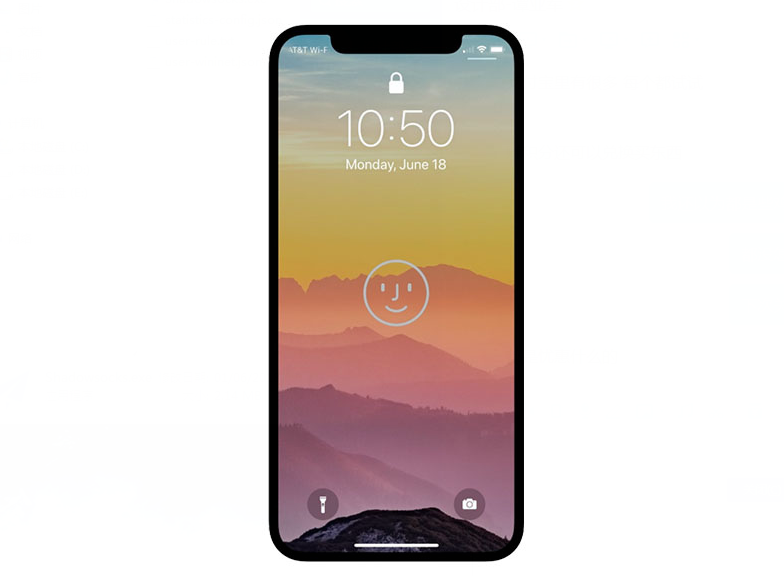
The default delay is set to 0.7 seconds, but you can slide the adjustment knob to be anywhere from 0.0 seconds to 1.5 seconds.
Keep in mind that more frequent facial scans may have an adverse impact on battery life as it utilizes the facial-scanning hardware more often, so it’s best to keep the slider somewhere in the middle to maintain the delicate balance between power and performance.
All changes made to the preference pane take effect on the fly, so you won’t need to respring your device to save them.
As a modification that improves the innovative unlocking mechanism of Apple’s flagship device, we couldn’t recommend PearlRetry enough to those lucky enough to have a jailbroken iPhone X. If you’re interested in trying it out for yourself, then the tweak is available as a free download from Cydia’s Packix repository.
Source: idb










