TUTORIALS
How To Get A Verification Code And Sign In With Two-factor Authentication?
 11/21/2017
 471771
With two-factor authentication, you’ll need a verification code to sign in with your Apple ID on a new device or browser.
Whenever you sign in with your Apple ID on a new device or browser, you'll confirm your identity with your password plus a six-digit verification code. There are a few ways you can get a verification code. You can use the code displayed on your trusted device, get a text or phone call, or generate a code from your trusted device.
Method one: Use the code displayed on your trusted device
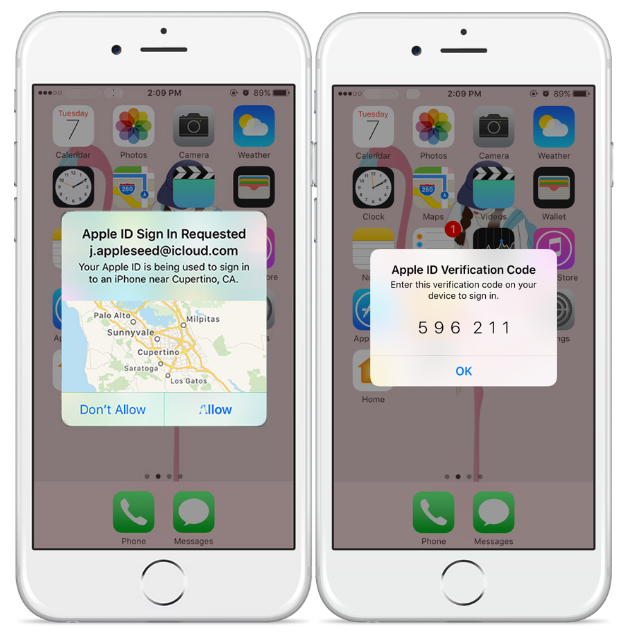
If you have a trusted device running iOS 9 and later or OS X El Capitan and later, the verification code will be displayed automatically on your trusted devices.
* Sign in with your Apple ID and password on a new device or browser.
* Look for a sign in notification on any of your trusted devices.
* Tap Allow to receive your verification code.
* Enter the verification code on your other device to complete sign in.
Method Two: Get a code from Settings on your trusted device
If you can’t receive a verification code on your trusted devices automatically, you can get one from Settings, even if your device is offline.
From your iPhone, iPad, or iPod touch with iOS 9 and later:
* Go to Settings > iCloud.
* Tap your Apple ID username.
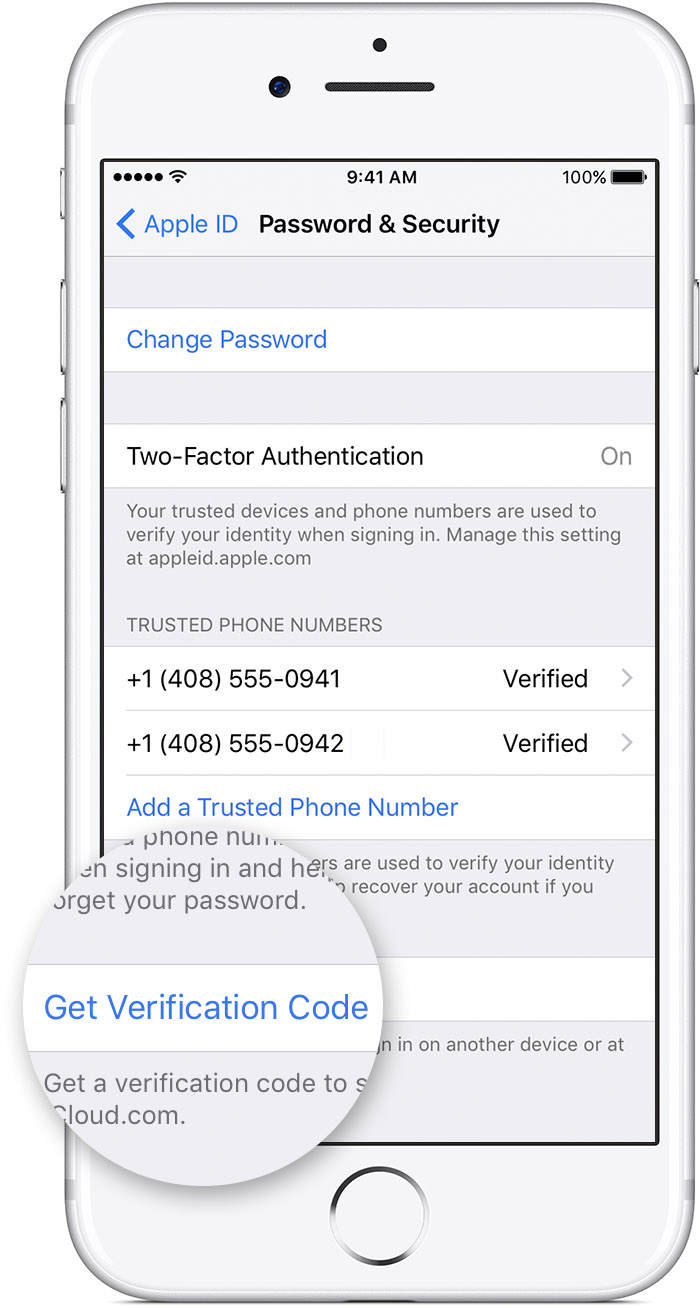
* If your device is offline, tap Get Verification Code.
* If your device is online, tap Password & Security > Get Verification Code.
From your Mac with OS X El Capitan and later:
* Go to Apple Menu > System Preferences > iCloud.
* Click Account Details.
* If your device is offline, click Get Verification Code.
* If your device is online, click Password & Security > Get Verification Code.