
TUTORIALS

This Tweak Simplify Your iPhone Volume HUD

03/14/2019

7457

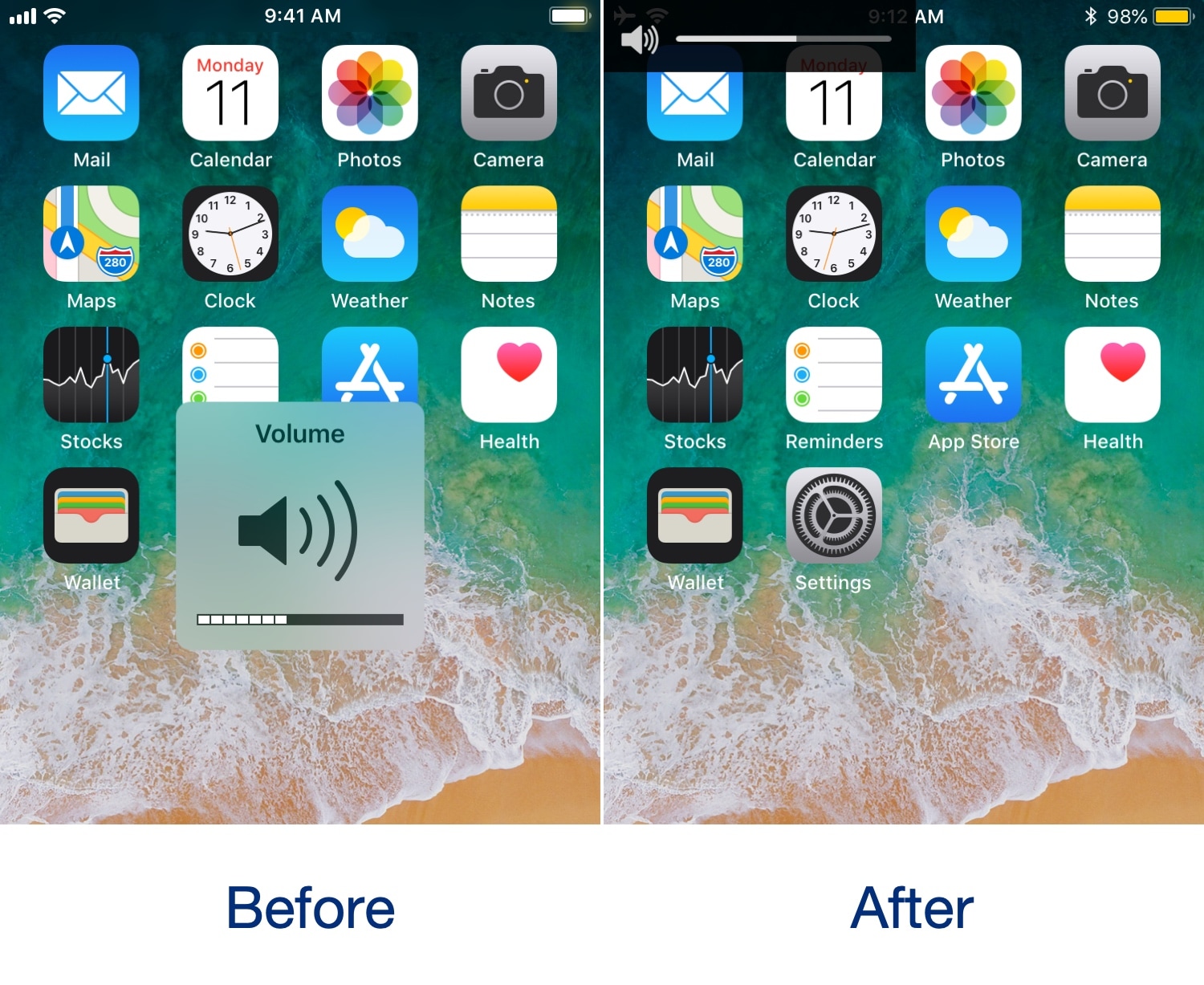
We’ve seen so many different types of volume HUD replacements for the iOS platform that it’s not even funny, but if you’re familiar with the Nintendo Switch, then you might be excited to learn that it’s now possible to achieve a similar volume HUD experience on the iPhone and iPad.

This Tweak Simplify Your iPhone Volume HUD

The newfangled volume HUD for iOS comes by way of a new free jailbreak tweak called NintendoSwitchHUD by iOS developer iKilledAppl3, and once you’ve installed it, you’ll see witness akin to the before and after screenshots illustrated above.


Right off the bat, you’ll discern that it’s significantly less obtrusive than the native volume HUD, which makes it ideal for mobile gaming. Moreover, you’ll see similar benefits throughout iOS, whether you’re browsing the web, writing emails, or viewing photos while listening to your favorite track(s).


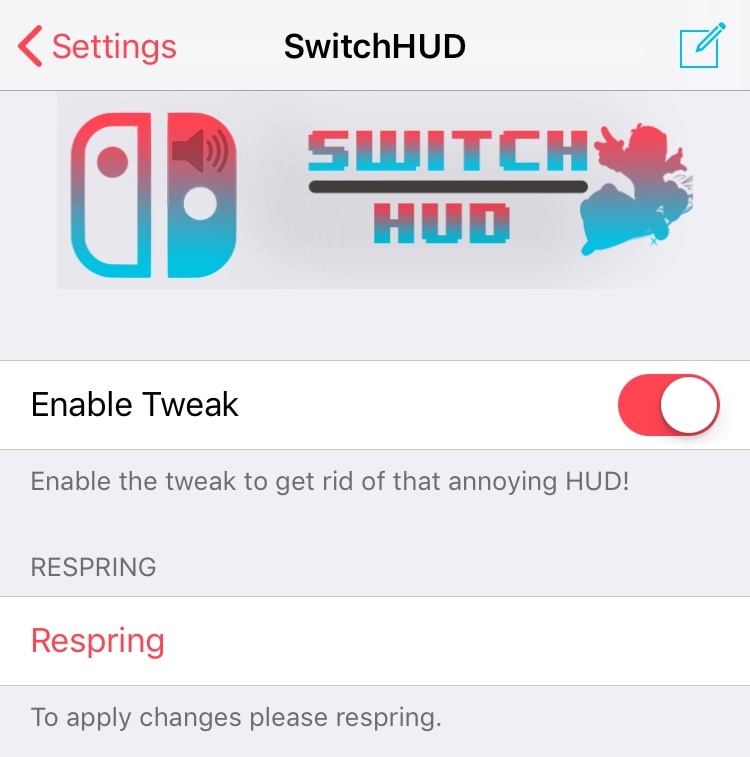
Once installed, you’ll find a dedicated preference pane in the Settings app where you can toggle NintentoSwitchHUD on or off on demand:

This Tweak Simplify Your iPhone Volume HUD


A respring button is included in the preference pane that you should use whenever you make changes to ensure they take effect.


NintendoSwitchHUD isn’t as pretty as some of the other alternatives available in Cydia, but if you’re familiar with the Nintendo Switch, then you’re probably more likely to accept the aesthetic shortcomings because it’s somewhat of a ‘familiar’ interface that you might see on some of your other device(s).


If you’re interested in trying NintendoSwitchHUD, then you can download it for free from Cydia’s Packix repository. The tweak works with all jailbroken handsets running iOS 10 through 12


Source: idb

Windows
Mac OS
iOS
Linux
3uTools
Win 64-bit For this device
V9.01 2025-12-27
Download
Win 32-bit For this device
V9.01 2025-12-27
Download
3uTools
Intel Chip How to Identify Chip Type
V9.01 2025-12-31
Download
Apple Silicon
V9.01 2025-12-31
Download
How to Identify Chip Type
1.  Click the Apple icon in the top-left corner of the screen and select About This Mac.
2.  Check the Processor or Chip field to determine if it is "Intel" or "Apple".
Please use the 3uTools PC client to install the iOS client:
1、 Install either the Windows or Mac version of 3uTools on your computer
2、 Open the PC client and connect your device to the computer via USB cable
3、 After the connection is successful, wait for the computer to automatically install the mobile app for the device, or locate “Install Mobile App” on the computer and manually click to install.
3uTools
deb file
V3.01 2025-11-20
Download
rpm file
V3.01 2025-11-20
Download
Windows
Windows
iOS
iOS
Android
Android
TV
TV
3uAirPlayer
Win 64-bit For this device
V6.0.2 2025-11-19
Download
Win 32-bit For this device
V6.0.2 2025-11-19
Download
iOS Device Mirroring (No App Required)
1、 Install 3uAirPlayer on the Windows PC
2、 Open Control Center and select Screen Mirroring
3、 From the list, choose your PC to start mirroring
4、 Or connect your iOS device to the PC via USB to begin mirroring
Scan to get "3uAirPlayer" App
3uAirPlayer TV V1.0.18
2025-11-28
TV System Requirements: Android 7.0 or later
Download the TV installation package, copy it to a USB drive, insert it into your TV or set-top box, then select the file from the home screen to install.




