 TUTORIALS
Set iPhone Wallpapers that Change Throughout the Day with AutoWall
 02/13/2019
 8092
8092
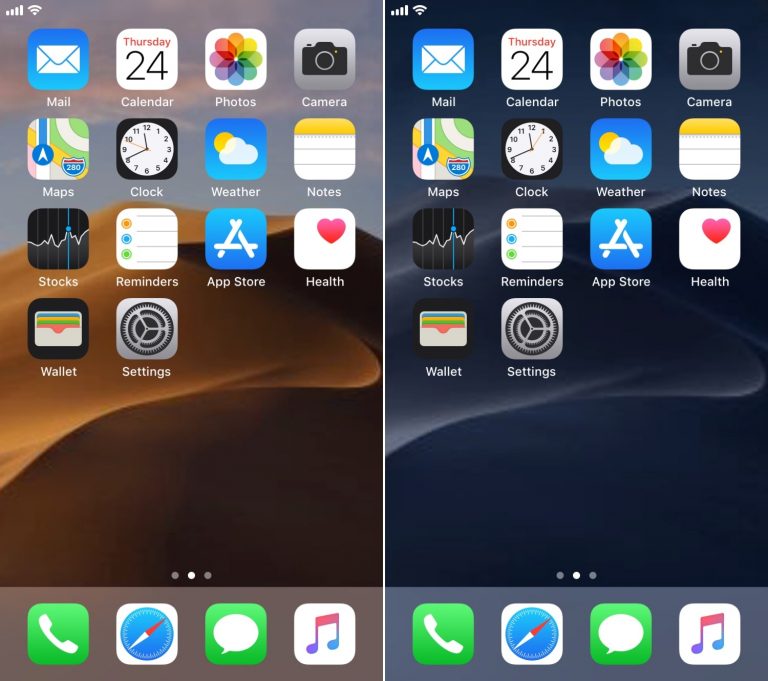
One of the greateest features in macOS Mojave is the dynamic wallpaper, which changes from a daytime desert landscape during the day to a nighttime desert landscape come nightfall. Apple is evidently capable of implementing something like this on the iOS platform as well, but they haven’t yet; and there’s no guarantee they ever will.
Fortunately, jailbreakers don’t need to wait. A free jailbreak tweak called AutoWall by iOS developer Julio Verne lets you have time-centric dynamic wallpapers on your iPhone or iPad – perfect for replicating macOS Mojave’s treasured feature on the iOS platform.
After you’ve installed AutoWall, you’ll need to download a set of wallpapers appropriate for the occasion. As shown above, I’ve saved two macOS Mojave wallpapers from the internet.
Note: you can save more than two if you wanted to, such as the full macOS Mojave wallpaper set, but I wanted to keep this demonstration short, sweet, and to the point.
After you save the desired wallpapers, you can visit the tweak’s preference pane in the Settings app to configure your setup:
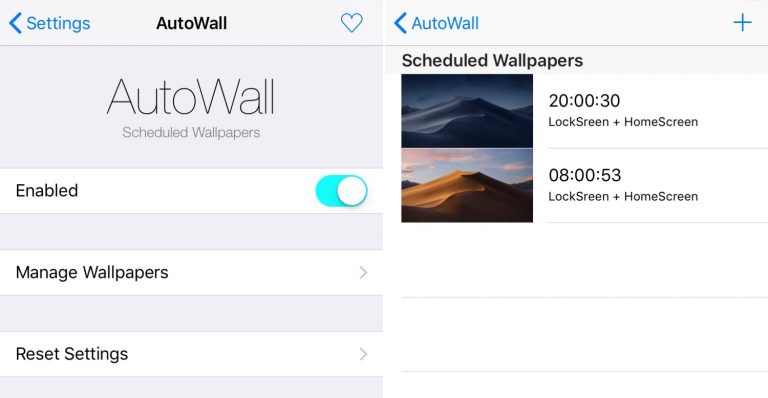
Here, you can:
Toggle the tweak on or off on demand
Manage existing wallpapers
When managing wallpapers, you can tap on the “+” button in the top right of the interface to add a new image from your Camera Roll. After selecting one, you’ll be prompted to configure an activation time and choose whether it will be applied to the Home screen or the Lock screen or both:
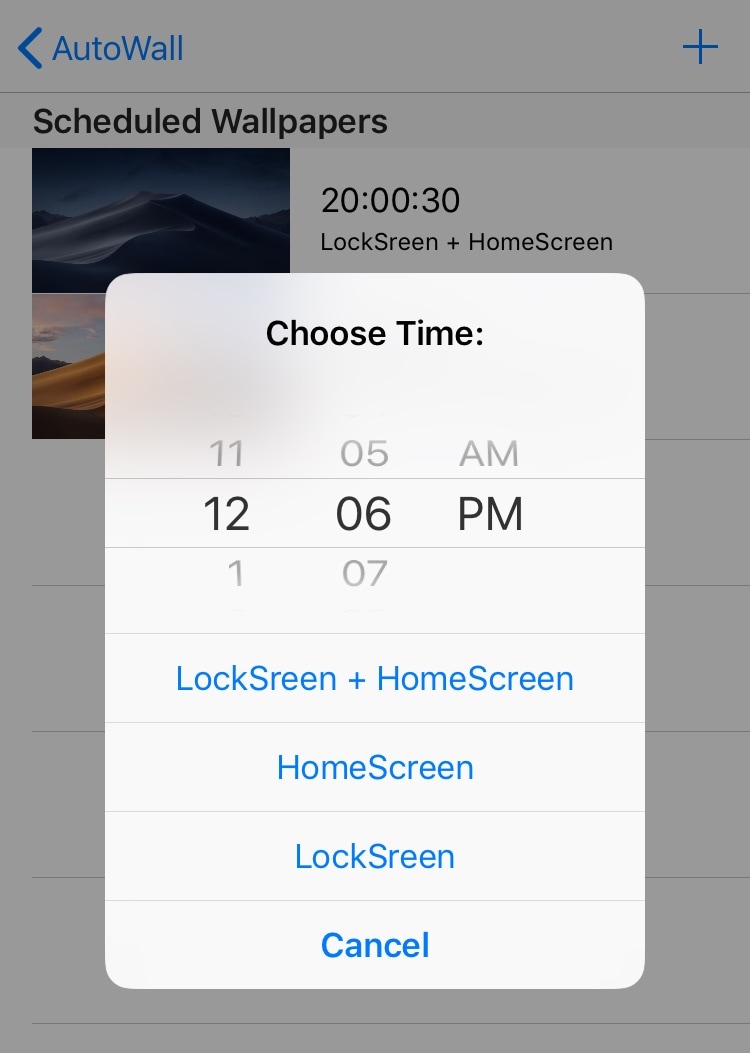
After you’ve done this for each image that you want in your time-centric dynamic wallpaper system, you’re all set. You won’t need to respring to save your changes; instead, you need only wait for the clock to reach the time you’ve set for the wallpaper to change.
One thing we noticed while using AutoWall is that the image scaling isn’t quite perfect. That said, you may want to choose wallpaper images that have been optimized for the iPhone’s tall display rather than using wallpaper images that are optimized for a Mac’s wide display.










