 TUTORIALS
How to Fix Random Freeze and Reboots on unc0ver Jailbreak?
 10/19/2018
 13234
13234
iOS 11 users who jumped ship to unc0ver jailbreak now seem to be experiencing random reboots and freeze issues. If you are one of those of jailbreakers, here’s a quick fix you can try.
As confirmed by CrashReporter, the Videosupscriptionsd daemon is responsible for crashes and reboots.
Initially, this daemon was running in jailbreak mode, which caused the devices to reboot or freeze randomly. With the release of RC5, the developer ensured that the daemon ran in jailed mode.
Thankfully, a new tweak by tweak developer dpkg fixes that issue. It simply unloads the Videosupscriptionsd daemon, thus fixing random reboots and freezes.

It comes with a prerm script with which you can uninstall this tweak and revert all changes made by it. Moreover, your filesystem remains intact once you install it because it works only while your device is in jailbreak state.
If you want to fix random reboots and crashes, all you need to do is install this tweak on your iPhone or iPad.
Alternatively, you can disable this daemon from the terminal. But, I don’t recommend using the manual method for obvious reasons.
If you are already using the terminal method, delete the folder rc.d folder from /etc/rc.d and follow the tutorial below.
How to fix random reboots by unloading videosupscriptionsd
Step 1 Launch Cydia and go to the Sources tab. Tap Edit > Add and enter the URL of dpkg’s repository – https://dpkg.yourepo.com.
Step 2 Now go to the Search tab and input “unloadVSD”.
Step 3 Wait for the search results to appear and install the aforementioned package from the official source.
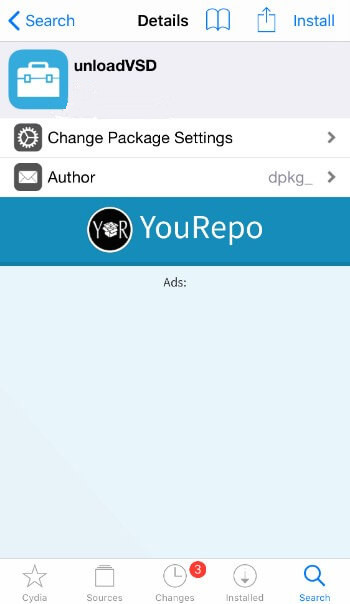
Step 4 Restart the SpringBoard once the installation finishes.
That’s all there’s to it! VSD will no longer bug you anymore.










