 TUTORIALS
Customize your iPhone’s Locking & Unlocking Animations with Amour
 10/15/2018
 7310
7310
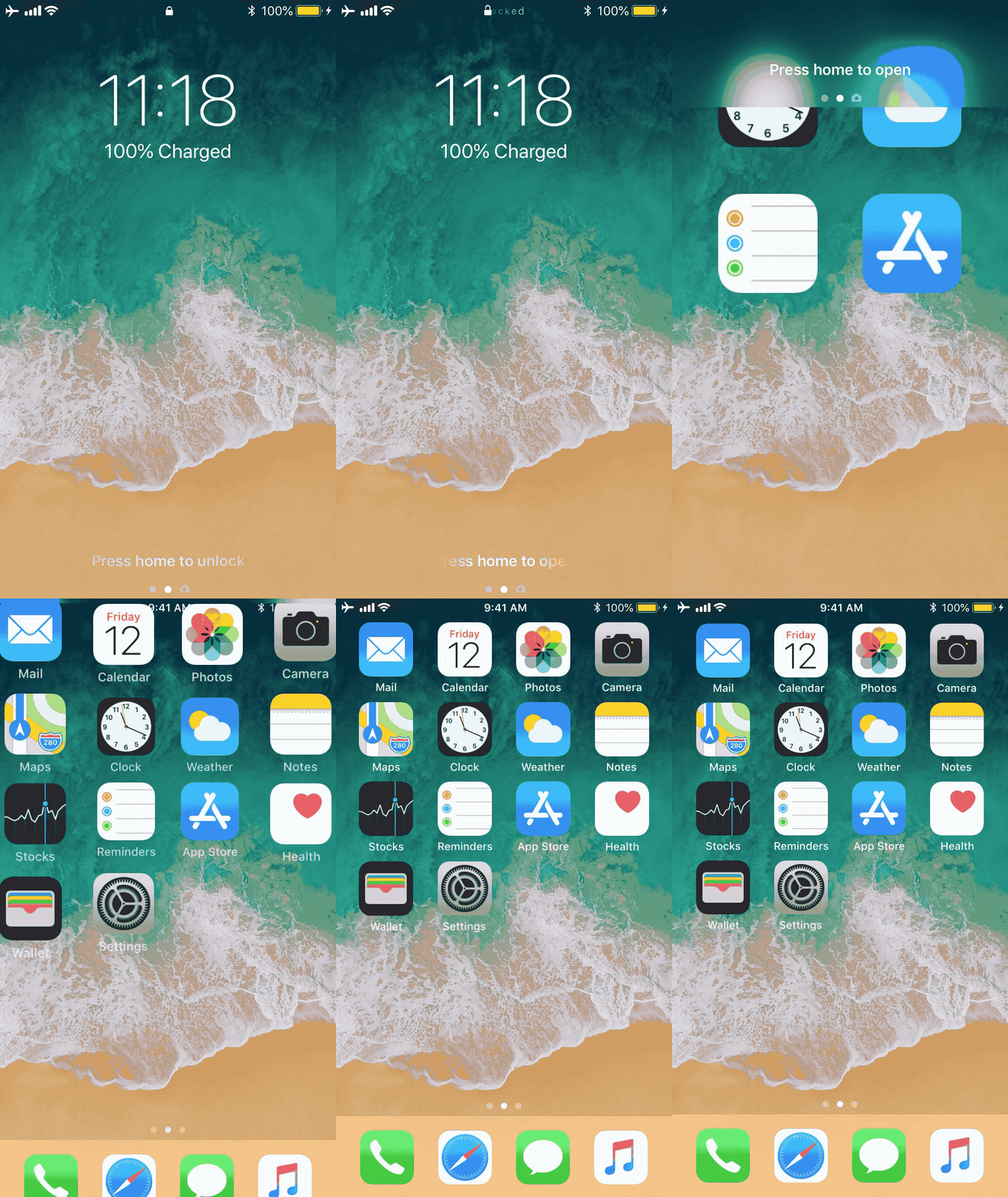
One of our favorite parts of jailbreaking is that you can customize the locking and unlocking animations of your handset. We haven’t seen a jailbreak tweak of this nature for quite some time, but iOS developer Luke Muris is changing that with a new release called Amour.
Once installed, Amour allows you to customize both the locking and unlocking animations of your jailbroken iPhone or iPad. You’ll discover a preference pane in the Settings app where you can configure the tweak however you like:
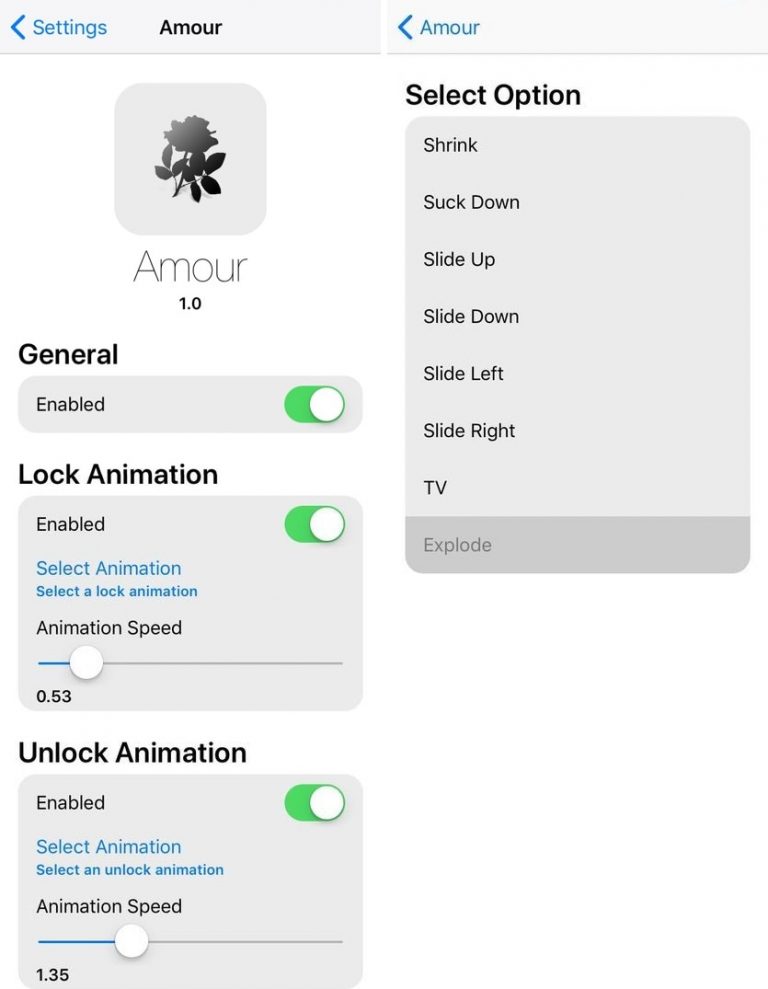
Here, you can:
1. Toggle the tweak on or off on demand
2. Enable a custom locking animation
Shrink
Suck Down
Slide Up
Side Down
Slide Left
Slide Right
TV
Explode
Choose a custom locking animation
Adjust the animation duration
3. Enable a custom unlocking animation
Choose a custom locking animation
Adjust the animation duration
Once satisfied with your selections and upon saving your changes, you can begin testing your animations immediately by locking and unlocking your handset. Your animation choices should be immediately evident as you move from the Lock screen to the Home screen and vice-versa.
Amour offers an extensive list of animations you can pick from, but I’ve got to give credit to the TV locking animation for sending chills of nostalgia down my spine. That’s a retro-style animation I haven’t seen on my jailbroken handset for quite some time.
With the fine-tuning aspects of Amour, you can not only pick your favorite animation but adjust its timing as well. That said, it offers quite a bit more customization than many animations tweaks we’ve seen previously.
If you’re interested in trying Amour out for yourself, then you can download it for $2.00 from Cydia’s Packix repository. Amour works with all jailbroken iOS 11 devices.
Source: idb










