
TUTORIALS

How to Solve Storage Space Almost Full After Jailbreaking iOS 9?

12/22/2016

8793

Although Apple has optimized iOS system to a large extent, there are so many iOS users waiting for the release of the new jailbreaking tool, especially for users who own iDevices below iPhone 6s/ 6s Plus, because theyre supported to use 3D Touch function after jailbreaking.


How to Solve Storage Space Almost Full After Jailbreaking iOS 9?


Since iOS 9 jailbreak tool is unveiled, 99% iDevice users can’t help experiencing it at once. But some users with 16GB iPhone have met with the issue that iPhone appears storage space almost full when they start jailbreaking iDevice. This problem is actually caused by the discrepancy between the applications migration path and root directory symbolic link path.


What should you do if your iDveice shows storage space almost full after you restart it? It is easy to solve if you reinstall Cydia 1.1.23, it is also apply to iPhone that has installed plugins.


* First off, you can find the following path in system file using 3uTools: /var/root/Media/Cydia/AutoInstall -> copy & paste Cydia 1.1.23 to this folder -> restart iPhone twice. That means you have already downgraded Cydia to 1.1.23, Cydia will make the correct migration path after iPhone is restarted twice.
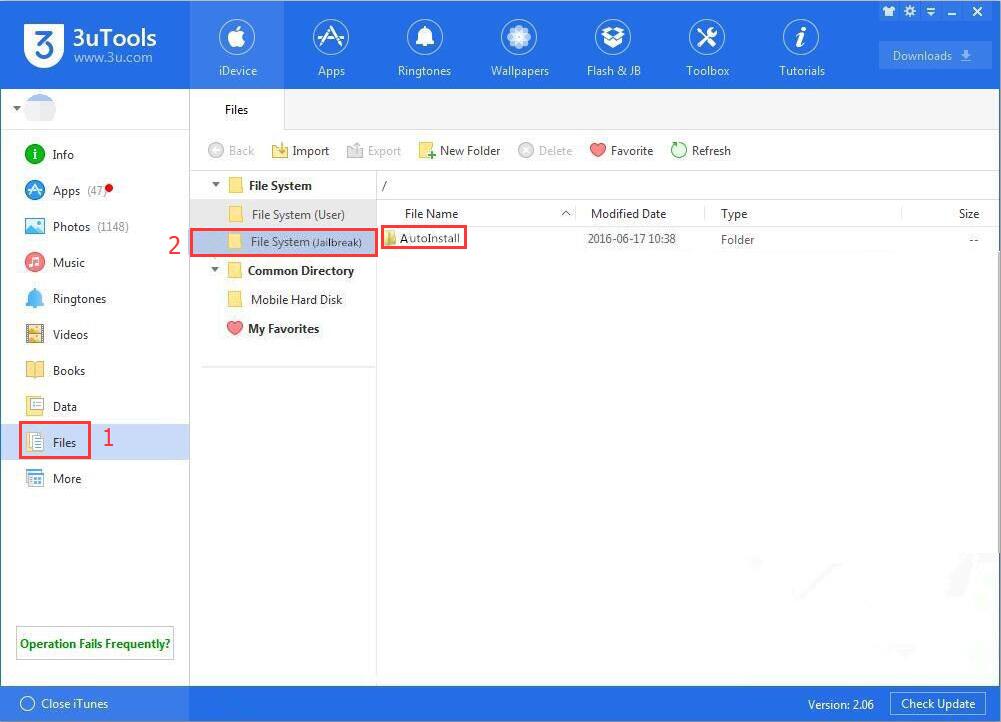

How to Solve Storage Space Almost Full After Jailbreaking iOS 9?


* After the migration path, you may meet with the problem that Cydia crashes, please don’t worry, just re-enter Cydia and wait until it finishes refreshing source. And then you will receive a prompt that Cydia has been updated to 1.1.24.


Windows
Mac OS
iOS
Linux
3uTools
Win 64-bit For this device
V9.02 2026-02-10
Download
Win 32-bit For this device
V9.02 2026-02-10
Download
3uTools
Intel Chip How to Identify Chip Type
V9.01 2025-12-31
Download
Apple Silicon
V9.01 2025-12-31
Download
How to Identify Chip Type
1.  Click the Apple icon in the top-left corner of the screen and select About This Mac.
2.  Check the Processor or Chip field to determine if it is "Intel" or "Apple".
Please use the 3uTools PC client to install the iOS client:
1、 Install either the Windows or Mac version of 3uTools on your computer
2、 Open the PC client and connect your device to the computer via USB cable
3、 After the connection is successful, wait for the computer to automatically install the mobile app for the device, or locate “Install Mobile App” on the computer and manually click to install.
3uTools
deb file
V3.01 2025-11-20
Download
rpm file
V3.01 2025-11-20
Download
Windows
Windows
iOS
iOS
Android
Android
TV
TV
3uAirPlayer
Win 64-bit For this device
V6.0.2 2025-11-19
Download
Win 32-bit For this device
V6.0.2 2025-11-19
Download
iOS Device Mirroring (No App Required)
1、 Install 3uAirPlayer on the Windows PC
2、 Open Control Center and select Screen Mirroring
3、 From the list, choose your PC to start mirroring
4、 Or connect your iOS device to the PC via USB to begin mirroring
Scan to get "3uAirPlayer" App
3uAirPlayer TV V1.0.18
2025-11-28
TV System Requirements: Android 7.0 or later
Download the TV installation package, copy it to a USB drive, insert it into your TV or set-top box, then select the file from the home screen to install.



