 TUTORIALS
How to UnJailbreak / Remove Electra 1131 Jailbreak without Upgrading to iOS 11.4.1?
 07/17/2018
 15251
15251
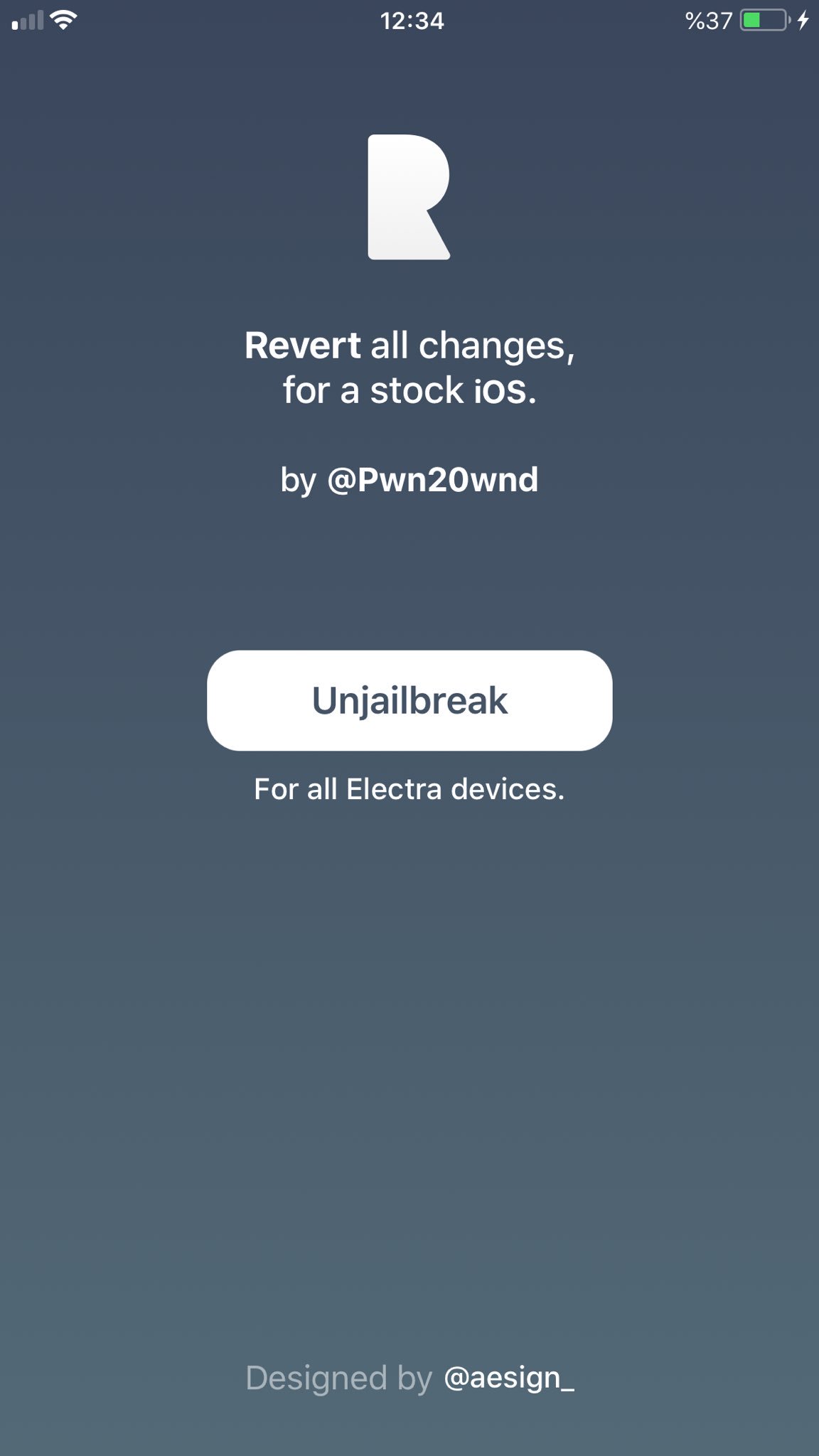
Update on July 17th: SemiRestore11 / Rollectra for iOS 11.3 -11.4 beta 3 has been released! (Repo : Packix)
Here’s how to unjailbreak or remove Electra 1131 iOS 11.3.1 / 11.4 jailbreak without updating to iOS 11.4.1 on your iPhone or iPad.
So, you find yourself in a jailbroken state on iOS 11.3.1, but for one reason or another want to entirely remove that jailbreak. This guide is going to show you how to do exactly that with just a few easy-to-follow steps.
This guide is meant only for more advanced users so if you don’t consider yourself one, or are confused about the whole process, we recommend waiting for more easier method, which might come some point in future.
Important Note
This will not work if you have updated your device from iOS 10 using a FutureRestore method.
If you have used the jailbreak to modify system files or have installed packages like Filza, then this method is not relevant
If you have SSH’d into your device and installed a package that way, then, once again, this method will not work for you.
This one should go without saying but in order to remove the jailbreak, you will need to actually have the jailbreak and access to a functional Cydia installation.
Preparations
1. Download the wonderful Cyberduck package from cyberduck.io.
2. For Windows users, download and install PuTTY from putty.org.
3. Download the “delectra” package from GitHub, which you can get from visiting the repository here
Operations
Step 1: Launch Cydia and head into the Search functionality. In the Search page, search for “subs” and tap into the Substitute package.
Step 2: Substitute should be installed on your device as it’s part and parcel of the Electra jailbreak and basically Electra’s replacement for Substrate. Uninstall this from your device, which, in turn, will remove all installed tweaks which have Substitute as a dependency and which could interfere with the unjailbreaking process.
Step 3: Exit Cydia, launch the Electra app and make sure that it states “Already Jailbroken".
Step 4: Go back to Cydia and simply search for OpenSSH. Make sure that this is installed, if it’s not, install it.
Step 5: Unzip the delectra files and drag the unjailbreak.sh file to your desktop. Now, launch Cyberduck and select the Open Connection button. Make sure that SFTP (SSH File Transfer Protocol) is selected from the drop-down.
Step 6: You will now need the IP address of the jailbroken iOS device to add into the Server field. Add root as the username and alpine as the password. Select Connect and then Allow to make the connection.
Step 7: Drag the jailbreak.sh file into the Cyberduck window to copy it across to the root of the connected device.
Step 8: If you are using Windows, launch PuTTY. If you are a Mac user, then launch the native Terminal app. Type the following command: ssh root@[ip address].
Note: “[ip address]” will be replaced with the IP address of your iOS device.
Step 9: Hit Enter and then enter the relevant password (alpine) when requested.
Step 10: Type the following command to run the unjailbreak script: bash ./unjailbreak.sh
Step 11: You will be given some information about the script that you will need to take note of. If you want to continue with the process, press Enter on the warning.
Step 12: The Terminal/PuTTY app will give some information about the process before rebooting and closing the connection to the device due to the removal of OpenSSH. Once rebooted, the jailbreak will be removed.










