 TUTORIALS
BetterCCXI Makes Certain iOS 11 Control Center Modules More Accessible
 07/02/2018
 11442
11442
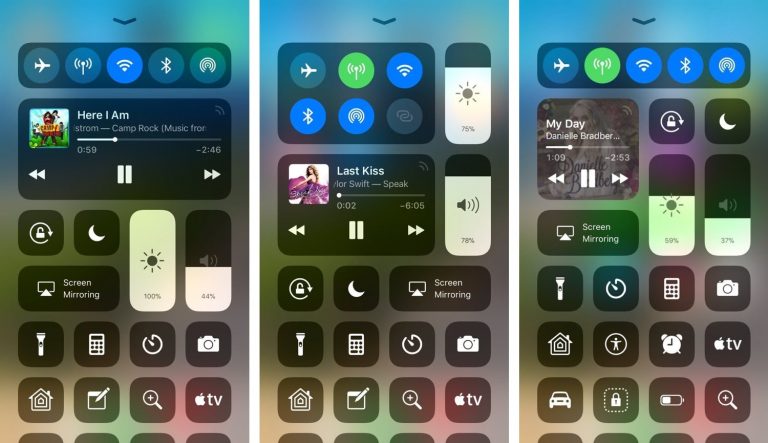
One of the major improvements that shipped with iOS 11 was the operating system’s redesigned modular Control Center interface. But as nice as it is, it still leaves a bit to be desired.
Fortunately, a new jailbreak tweak called BetterCCXI by iOS developer ATWiiks lets you resolve some of the shortcomings that are present in iOS 11’s Control Center interface.
The primary focus of BetterCCXI is to make Control Center’s connectivity and music modules more accessible. The tweak achieves its goal by providing users with resizable modules capable of displaying more controls or information at a glance than you’d normally see out of the box.
In the screenshots above, you can see a few examples of the connectivity and music modules being reformatted and resized.
In the case of the connectivity module, enlarging it allows more toggles to be displayed at a time. As for the music module, its larger footprint spaces things apart better and makes it more challenging to tap on the wrong control.
BetterCCXI adds a preference pane to the Settings app where you can modify these modules on demand:
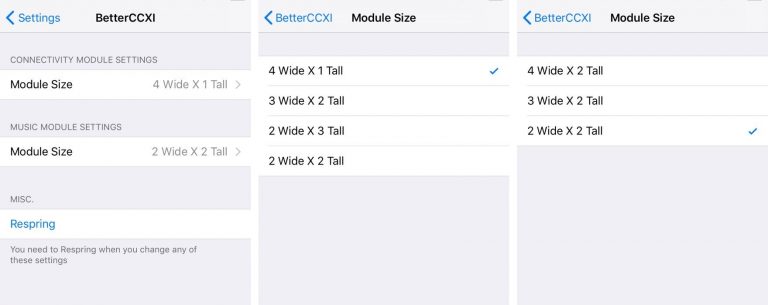
Here, you can:
1. Configure the layout of the connectivity module:
4 wide by 1 tall
3 wide by 2 tall
2 wide by 3 tall
2 wide by 2 tall
2. Configure the layout of the music module:
4 wide by 2 tall
3 wide by 2 tall
2 wide by 2 tall
The developer includes a complimentary respring button in the preference pane for saving your changes.
Apart from offering a night and day difference in Control Center module accessibility, BetterCCXI also makes the interface look cooler. Given how the tweak is probably a win/win for most people, it might be worth checking out if you have a jailbroken iOS 11 iPhone handy.
Note: BetterCCXI does not support the iPad as of this writing, but that will expectedly change in the future.










