 TUTORIALS
CallBlocker Brings Functional Call-blocking Options to Jailbroken iPhones
 06/14/2018
 5540
5540
Some of you may receive more phone calls than others, and sometimes they come from people that you don’t want calling your number, such as exes and/or telemarketers.
A wide assortment of call-blocking apps can be found in the App Store, but a new free jailbreak tweak called CallBlocker by iOS developer Kiran Patil promises to deliver a more in-depth experience.
CallBlocker stands out from competing App Store options by providing a more fine-grained control over blocked callers. The tweak lets you choose between blocking or suppressing call notifications for unknown numbers. Otherwise, you can specify particular phone numbers, country codes, area codes, etc. that you don’t feel like dealing with.
The tweak adds a preference pane to the Settings app where you can configure your call-blocking options:
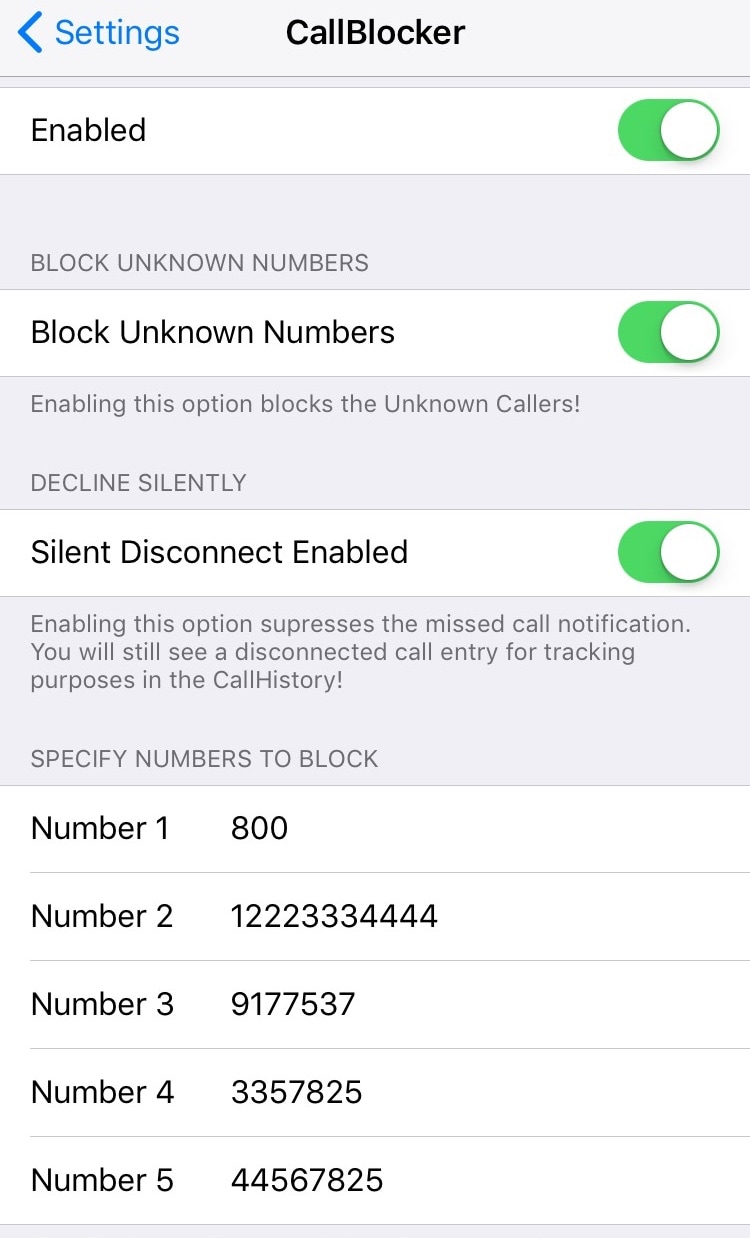
Here, you can:
Toggle the tweak on or off on demand
Block unknown callers
Suppress missed call notifications for unknown callers
Specify up to five phone numbers, country codes, or starting number sequences to block
As the developer notes, it’s essential to enter the phone number exactly as it would be shown in the incoming call interface. You don’t need to include the “+” icon when relevant, but you do need to add the full country code and area code for the tweak to work.
Notably, you could add “33” to one of these lines to block calls from France, as 33 is France’s country code, and you could do this for any country assuming you knew the code for it. You could also add “800” to one of these lines to block numbers associated with telemarketer scams. The tweak is suited to fit your needs, and you can customize it any way you’d like.
CallBlocker is available for free from Cydia’s BigBoss repository, and it seems to be very effective at doing what it’s made to do. The tweak works on all jailbroken iOS 11 devices.










