
TUTORIALS

StatusBarX Brings the iPhone X’s Status Bar to Other iDevices

06/08/2018

6881

Love it or hate it, the iPhone X Status Bar looks different from the one on traditional rectangular-display iPhones. Its unique aesthetic accommodates the ‘notch’ at the top of the handset’s display.


But if you have an iPhone with a traditional rectangular display and wish your Status Bar looked more like it did on the iPhone X, then you might want to try a new free jailbreak tweak called StatusBarX by iOS developer Adel Hammoud.

StatusBarX Brings the iPhone X’s Status Bar to Other iDevices


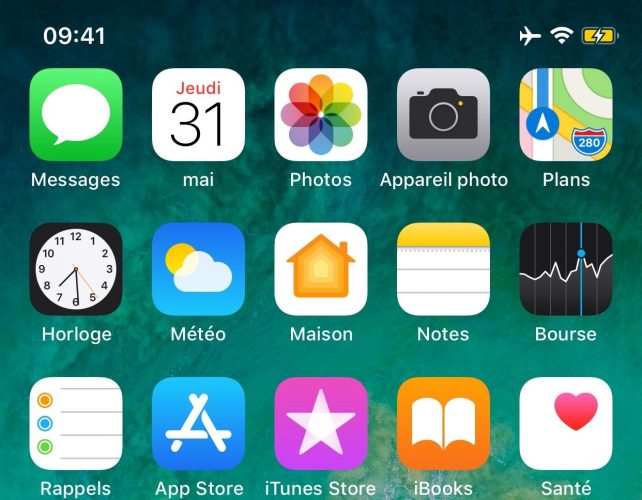
As depicted by the screenshot example above, StatusBarX ports the iPhone X Status Bar experience to other iPhones and iPads by moving the time to the left and information concerning your current wireless connection and battery life to the right.


Notably, the tweak doesn’t emulate a ‘notch’ at the top of your display. Instead, it leaves an empty space just above your Home Screen icons. Even then, it doesn’t look half bad, at least in my opinion.


In its current form, StatusBarX is a work in progress. That said, it only works from SpringBoard and not from within apps. In unsupported interfaces, the traditional Status Bar appears. It will remain this way until the developer discovers how to make the tweak work systemwide.


If you want to give StatusBarX a try for yourself, then you can download it for free from Cydia’s BigBoss repository. The tweak works on all jailbroken iOS 11 devices and doesn’t come with any options to configure.


Source: idb

Windows
Mac OS
iOS
Linux
3uTools
Win 64-bit For this device
V9.01 2025-12-27
Download
Win 32-bit For this device
V9.01 2025-12-27
Download
3uTools
Intel Chip How to Identify Chip Type
V9.01 2025-12-31
Download
Apple Silicon
V9.01 2025-12-31
Download
How to Identify Chip Type
1.  Click the Apple icon in the top-left corner of the screen and select About This Mac.
2.  Check the Processor or Chip field to determine if it is "Intel" or "Apple".
Please use the 3uTools PC client to install the iOS client:
1、 Install either the Windows or Mac version of 3uTools on your computer
2、 Open the PC client and connect your device to the computer via USB cable
3、 After the connection is successful, wait for the computer to automatically install the mobile app for the device, or locate “Install Mobile App” on the computer and manually click to install.
3uTools
deb file
V3.01 2025-11-20
Download
rpm file
V3.01 2025-11-20
Download
Windows
Windows
iOS
iOS
Android
Android
TV
TV
3uAirPlayer
Win 64-bit For this device
V6.0.2 2025-11-19
Download
Win 32-bit For this device
V6.0.2 2025-11-19
Download
iOS Device Mirroring (No App Required)
1、 Install 3uAirPlayer on the Windows PC
2、 Open Control Center and select Screen Mirroring
3、 From the list, choose your PC to start mirroring
4、 Or connect your iOS device to the PC via USB to begin mirroring
Scan to get "3uAirPlayer" App
3uAirPlayer TV V1.0.18
2025-11-28
TV System Requirements: Android 7.0 or later
Download the TV installation package, copy it to a USB drive, insert it into your TV or set-top box, then select the file from the home screen to install.




