
TUTORIALS

Monthlicon Displays the Current Month Under the Calendar App Icon

06/01/2018

4532

Quickly glancing at the Calendar app icon on your Home screen can be a fast and effective way to discern the date/day in a pinch, but iOS developer Maxwell Lang wanted to expand upon that idea with the release of a new free jailbreak tweak called Monthlicon.


As the name of the tweak implies, Monthlicon keeps you informed of the current month in addition to the date and day. It does so by replacing the Calendar app’s Home screen label with the name of the month.
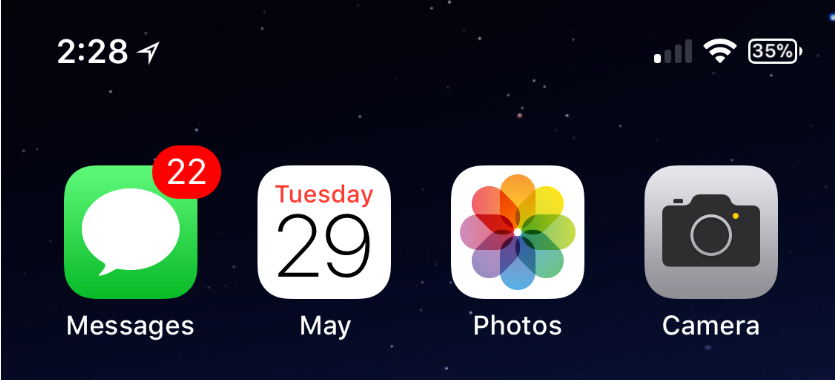

Monthlicon Displays the Current Month Under the Calendar App Icon


You can see an example in the screenshot above, where the label now displays “May” as the name of the app rather than “Calendar.” Obviously, the name changes in real-time as the months progress.


Would you really need this tweak? Probably not, but it’s a neat trinket to add to your jailbreak tweak arsenal if you enjoy making your Home screen stand out from those on stock devices.


Moreover, the effect complements Apple’s trend of providing live Home screen icons for the current date and time in the Calendar and Clock app icons, and it does so in a subtle manner.


Monthlicon doesn’t have any options to configure, so merely installing it makes the necessary changes to your device. You can revert to the stock Calendar app label text at any time by uninstalling the tweak from your device.


If you want to give Monthlicon a try, then you can download it for free from Cydia’s BigBoss repository. The tweak is only compatible with jailbroken iOS 11 devices.


Source: idb

Windows
Mac OS
iOS
Linux
3uTools
Win 64-bit For this device
V9.0 2025-11-11
Download
Win 32-bit For this device
V9.0 2025-11-11
Download
3uTools
Intel Chip How to Identify Chip Type
V9.0 2025-12-02
Download
Apple Silicon
V9.0 2025-12-02
Download
How to Identify Chip Type
1.  Click the Apple icon in the top-left corner of the screen and select About This Mac.
2.  Check the Processor or Chip field to determine if it is "Intel" or "Apple".
Please use the 3uTools PC client to install the iOS client:
1、 Install either the Windows or Mac version of 3uTools on your computer
2、 Open the PC client and connect your device to the computer via USB cable
3、 After the connection is successful, wait for the computer to automatically install the mobile app for the device, or locate “Install Mobile App” on the computer and manually click to install.
3uTools
deb file
V3.01 2025-11-20
Download
rpm file
V3.01 2025-11-20
Download
Windows
Windows
iOS
iOS
Android
Android
TV
TV
3uAirPlayer
Win 64-bit For this device
V6.0.2 2025-11-19
Download
Win 32-bit For this device
V6.0.2 2025-11-19
Download
iOS Device Mirroring (No App Required)
1、 Install 3uAirPlayer on the Windows PC
2、 Open Control Center and select Screen Mirroring
3、 From the list, choose your PC to start mirroring
4、 Or connect your iOS device to the PC via USB to begin mirroring
Scan to get "3uAirPlayer" App
3uAirPlayer TV V1.0.18
2025-11-28
TV System Requirements: Android 7.0 or later
Download the TV installation package, copy it to a USB drive, insert it into your TV or set-top box, then select the file from the home screen to install.




