 TUTORIALS
How to Fix Error: topanga in Electra Jailbreak
 02/28/2018
 15877
15877
Although Electra RC1 is out to the public, it still contains a few bugs and false positives. Here’s how you can remove the infamous “error: topanga” error on iOS 11-11.1.2 firmware.
Why does Electra detect topanga jailbreak?
Coolstar has implemented a DRM system that checks for traces of the malicious to.panga jailbreak. Since Electra toolkit is open source, anyone can access its files.
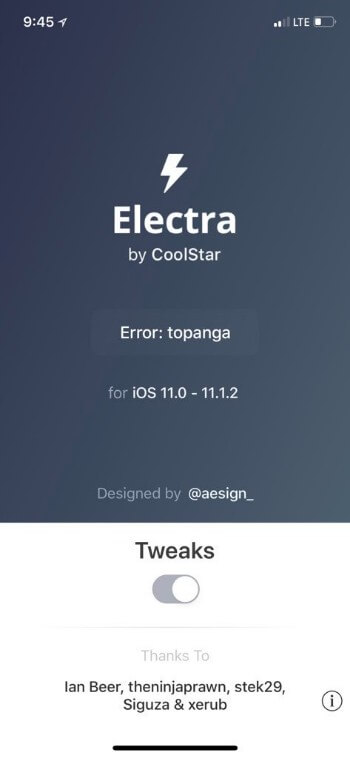
Here’s how the “Error: topanga” message looks like.
Method1: Remove dropbear folder
Step 1 Open FilzaEscaped file manager. If you didn’t install this app, you can download it from this link.
Step 2 Navigate to /etc folder on your device’s filesystem.
Step 3 Delete the dropbear folder.
Remember, your device may not have the dropbear folder. If that’s the case, use the following method.
Method2: Remove malicious files
Step 1 Launch FilzaEscaped again.
Step 2 Remove the following files or folders from the appropriate locations on your device’s filesystem. These are the files Abraham’s developer-only tool installs.
/usr/lib/libncurses.5.dylib
/usr/lib/libncurses.dylib
/usr/lib/libcurses.dylib
/Applications/uicache (remove entire folder)
/Library/MobileSubsrate/ (remove entire folder)
/etc/dropbear/ (remove entire folder)
That’s all there’s to it! You can now run Electra’s RC1 version on your device freely. If you still get the Error: topanga error, try the following fixes.
Method3: remove third -party apps
Even if you didn’t try any jailbreak tool before, you can still get this error.
Try removing all third-party apps like Ext3nder or other ++ social media applications until the jailbreak succeeds. You can also experience this glitch if you used Circuit Breaker, Flex 3, or FilzaElectracuted.
If you installed any version of Cydia Extender, remove the following files and folders.
/Applications/Extender.app
/Library/Switches/ (remove entire folder)
Method4: Clean up the bin folder
If you did install any other tools, you might have added some files to the root bin folder. Simply, remove all files (except df and ps) for this folder using Filza file manager.
In my case, it was the bash file that was causing troubles. Once I got rid of it, the jailbreak succeeded.
Make sure you don’t delete the aforementioned files. These are important system files and can force you to upgrade if deleted.










