TUTORIALS
How to Set up Call Recording on iOS 11 Jailbreak with Electra?
 01/22/2018
 18636
18636
The author of Audio Recorder has made update to this tweak works on iOS 11 and it can be worked with Electra.
Supported iOS versions:
iOS 10.x, iOS11 - iOS 11.1.2
Supported iOS devices:
iPhone 4s, iPhone 5, iPhone 5s, iPhone 6, iPhone 6 Plus, iPhone 6s Plus, iPhone 7, iPhone 7 Plus, iPhone 8, iPhone 8 Plus, iPhone X and all iPads.
If you use Windows PC, you need to download PieTTY SSH tool.
AudioRecorder is a famous call recording tweak from the jailbreak period of iOS 8, when Apple absolutely does not support this feature. With iOS 11, Cydia's installation process is a bit tougher, but the author has made a shell script file for easy installation, which you can install via a simple SSH command in the following steps:
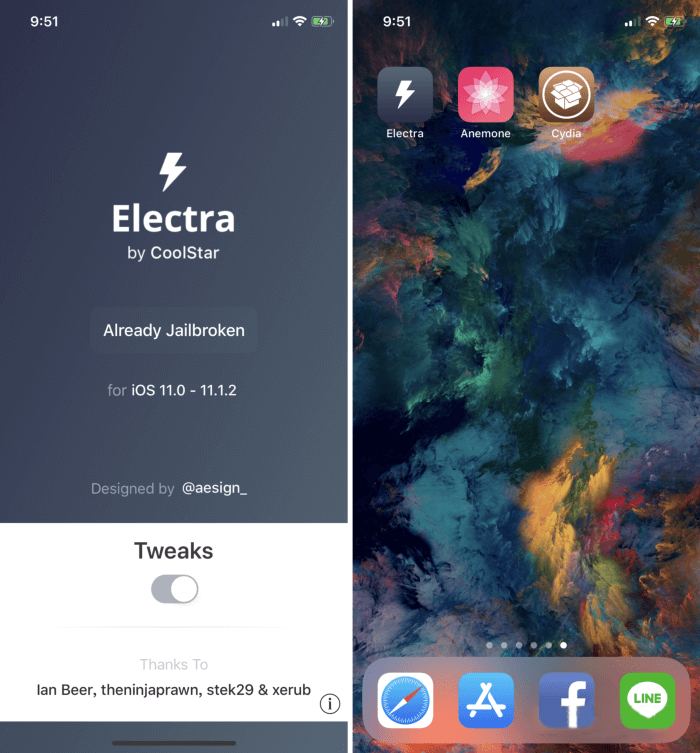
Step 1: After jailbreaking your iOS device with Electra, then connect it to PC.
Step2: Then go to Settings app, click Wi-Fi, you need to remember your iOS device’s IP address.
Step3: Run CMD or command prompt on your Windows PC, then enter the following command. ping 192.168.xxx.xxx At first, you need to check if your iOS devices could be recognized by your computer. You may see the IP address behind XXX.XXX.
Step4: Unzip PieTTY. Enter your iPhone’s IP address Port (2222).
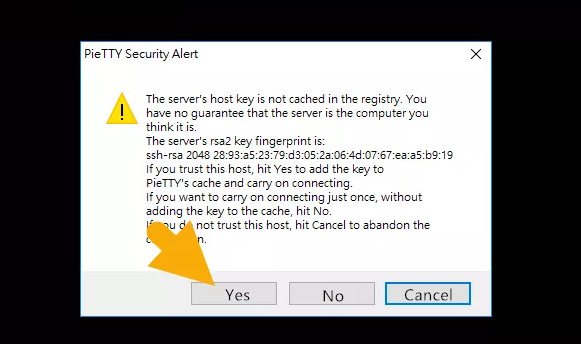
Step5: Then you’ll get the following reminder just click Yes.
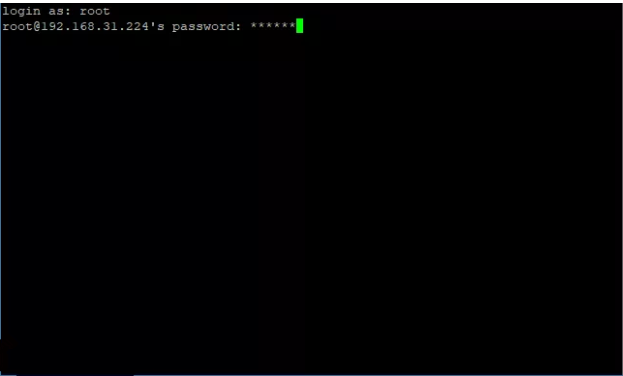
Step6: After connecting your iOS device, please enter the following info.
Login as: root
Password: alpine
Then click Enter key.
Step7: Keep a good Wi-Fi connection, copy the following commands and paste them on PieTTY.
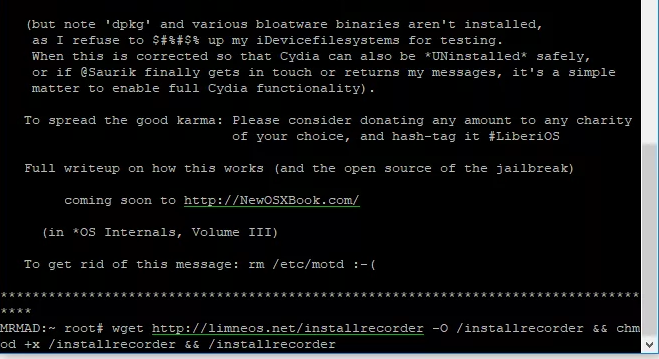
Install tweak: wget http://limneos.net/installrecorder -O /installrecorder && chmod +x /installrecorder && /installrecorder
Update tweak:/bootstrap/bin/rm /installrecorder; /bootstrap/usr/local/bin/wget http://limneos.net/installrecorder -O /installrecorder; /bootstrap/bin/chmod +x /installrecorder; /installrecorder
Remove tweak:rm /installrecorder; wget http://limneos.net/installrecorder -O /installrecorder; chmod +x /installrecorder; /installrecorder -u If it shows unknown error, you may use Filza to delete it. /bootstrap/Library/SBInject/AudioRecorderUI.dylib file
Step8: After installing the tweak, your iOS device will reboot automatically then just enjoy it.
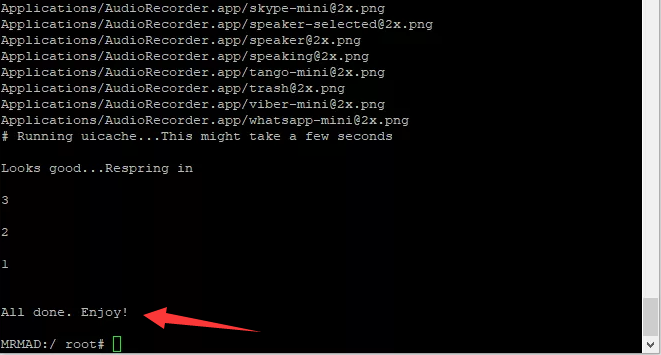
Step9: For Mac users:
ssh root@IP address -p 2222
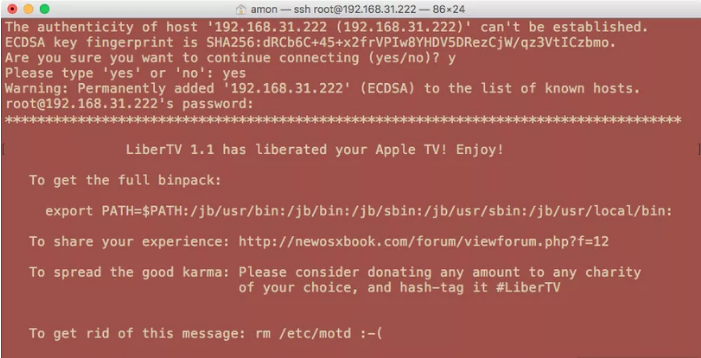
For example: ssh root@192.168.0.0 -p 2222 Login: root, Password: alpine. If you receive a reminder just click Yes.
Step10: Back to your iOS device, click OK -> Purchase AudioRecoder. If you’ve purchased, click Transfer License to enable authorization.
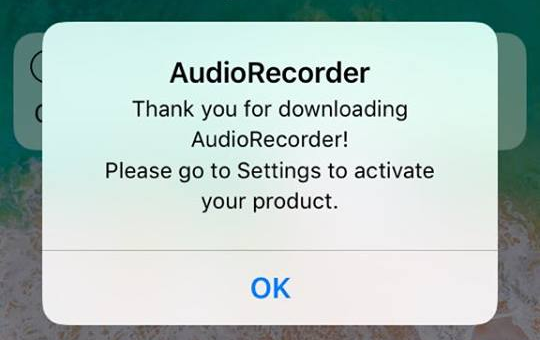
Step11: After that, go to AudioRecorder app and click I Agree, remember to switch Play warning Audio Message off.
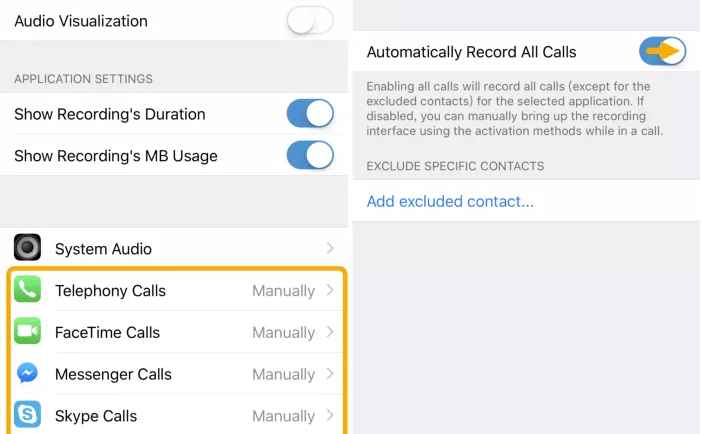
Step12: You may turn on Automatically Record All Calls,it will help record all your calls.