 TUTORIALS
How to Jailbreak iOS 10.3.3 Using H3lix?
 01/05/2018
 37865
37865
Here’s how to jailbreak iOS 10.3.3 using h3lix semi-untethered jailbreak on 32-bit iDevices. And please stay tuned for 3uTools support.
As you may already know by now, the first public iOS 10.3.3 jailbreak h3lix is now available to download. It’s important to note that this 32-bit jailbreak is semi-untethered in nature, which means you will need to put your device into jailbreak mode after every reboot.

Compatibility
Device
iPhone 5
iPhone 5c
iPad (4th generation)
Firmware
This is a universal jailbreak and supports all versions starting from iOS 10 to 10.3.3. But according to some testing results, this jailbreak only works on iOS 10.3.3.
Operations
Step 1: Download h3lix jailbreak for 32-bit iOS 10.3.3 devices from here: RC 1 Updated: RC 2
Step 2: Download Cydia Impactor for Windows or Mac from cydiaimpactor.com.
Step 3: Restore your device to iOS 10.3.3 using 3uTools if you haven’t already. We recommend doing this as it’s always great to start afresh when jailbreaking to avoid any issues. Make sure you backup your device’s data though before doing this.
Step 4: Connect your iOS device to your computer via USB and then launch Cydia Impactor.
Step 5: Sideload the jailbreak IPA using Cydia Impactor.
Step 6: Once sideloaded and the profile has been trusted, launch the h3lix jailbreak app.
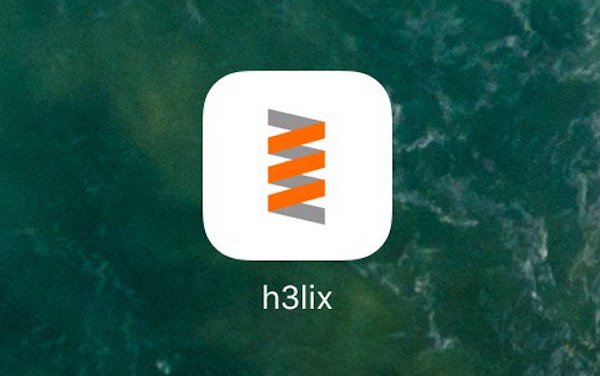
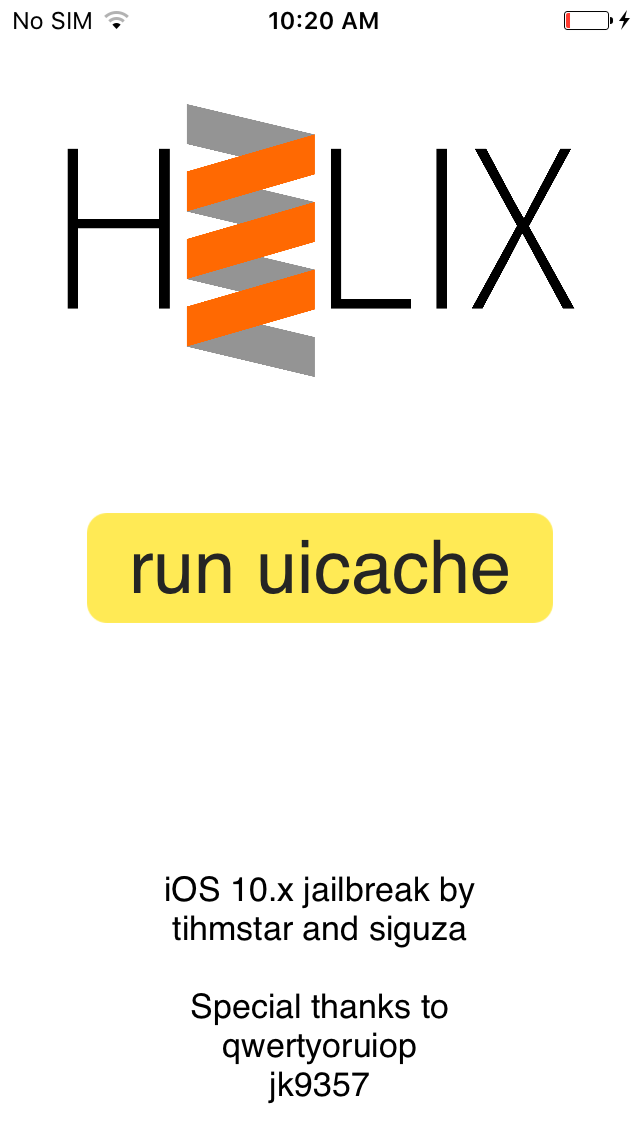
Step 7: Press the “jailbreak” button in the center and wait for the jailbreak to do its thing.
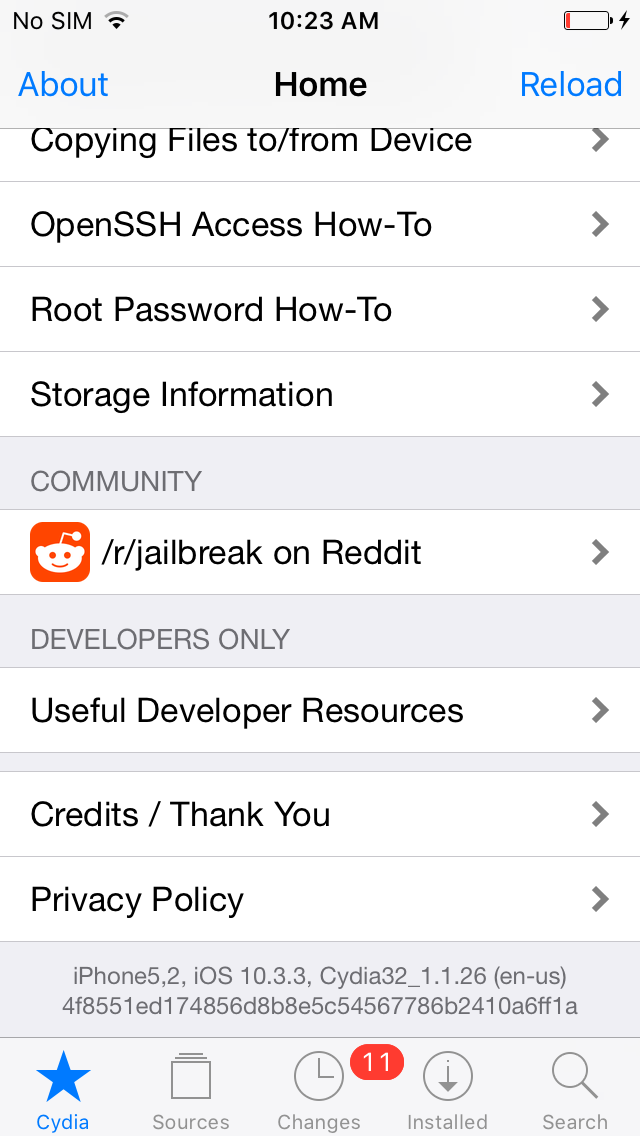
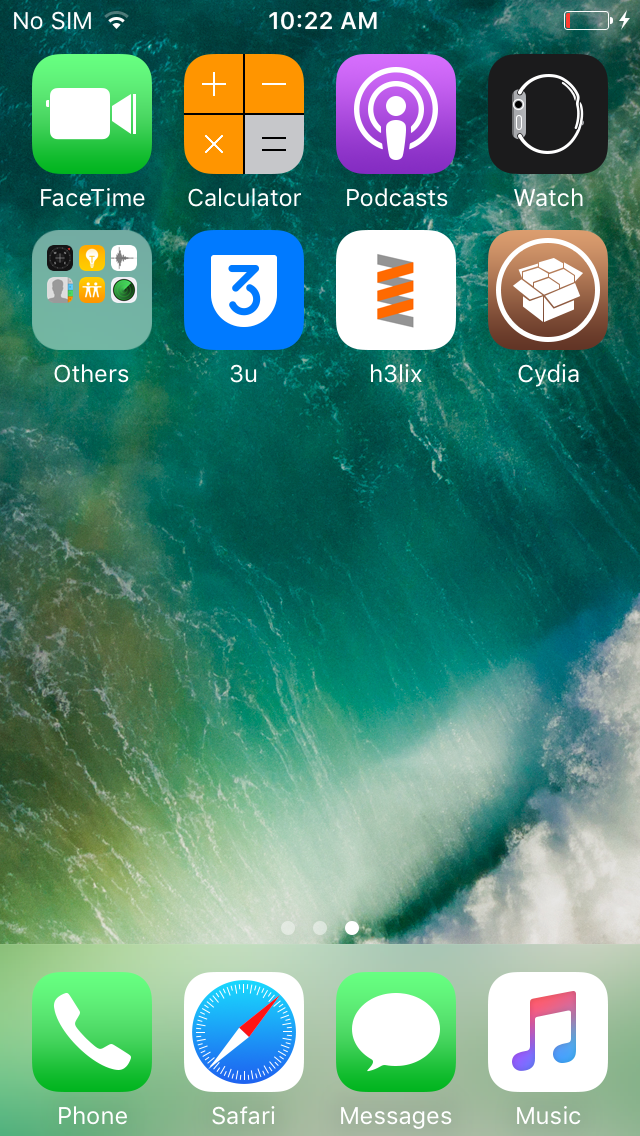
Step 8: Once done, you should have Cydia on the Home screen of your device.
Step 9: After respring, you should be back into jailbreak mode, able to run Cydia and install tweaks.
#Update 1:
Just pushed h3lix RC2 which should fix the JavaScript bughttps://t.co/FJC5zZG9Q8
— tihmstar (@tihmstar) December 25, 2017
#Update 2:
Someone told me that h3lix didn't work on iOS 10.0.2
— tihmstar (@tihmstar) January 1, 2018
I just pushed RC4 which fixes the issue :)https://t.co/qt2ctWcHpk pic.twitter.com/Y8vM78KNQN
#Update 3:
h3lix RC5 fixes a bug related to JIThttps://t.co/FJC5zZG9Q8
— tihmstar (@tihmstar) January 4, 2018
in case stuff like emulators or script interpreters (LUA) or sth didn't work, you might wanna try RC5
Source: H3lix










