 TUTORIALS
How to Jailbreak iOS 11.1.2 Using To.Panga ?
 03/02/2018
 12671
12671
To.Panga iOS 11.1.2 jailbreak can now be made on the iPhone by anyone, and this tutorial helps you to enjoy the mobile phone solution immediately.
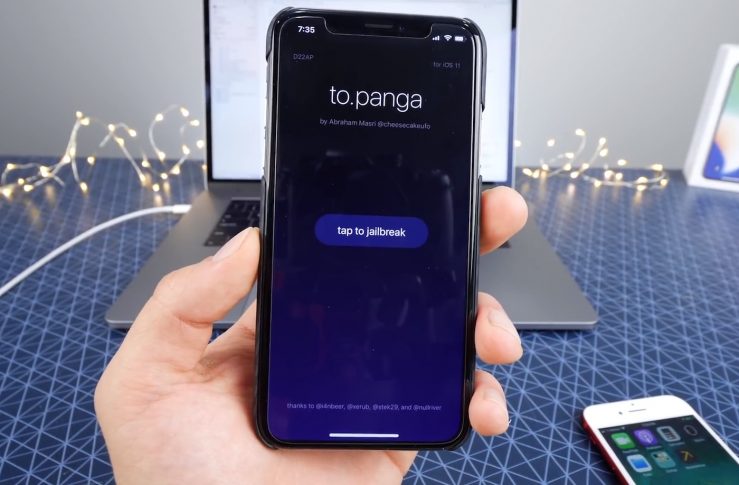
To.Panga iOS 11.1.2 Jailbreak - compatible iOS versions
At this time, to.panga can make jailbreak on the following iOS versions: iOS 11, iOS 11.0.1, iOS 11.0.2, iOS 11.0.3, iOS 11.1, iOS 11.1.1, iOS 11.1.2
To.Panga iOS 11.1.2 Jailbreak on iPhone You have the video below that will show you physically how to do the installation, and in short, everything is done like this:
How to jailbreak iOS 11.1.2/11.1.1/11
The jailbreak tool is released for developers. After installed cydia, there may be no repos. So wait for the full jailbreak update. The process is same for jailbreaking your iPhone on iOS 11.1.2/11.1.1/11. Follow these steps;
Step 1: Launch Safari on your iPhone
Step 2: Enter the URL http://gestyy.com/wpIxJx
You will see the 5 second ad
Step 3: Skip the ad, and will redirect to another page.
Step 4: Go back to the previous page and skip the ad one more time.
It will now pops a message saying "Jailbreak iOS 11 to iOS 11.1.2 by @cheescakeufo uploaded by @mohadu313".
Step 5: Hit install and will begin downloading the To.Panga app in the Homescreen.
Wait for few minutes for download to complete.
Step 6: Next go to Settings >> General >> Profile Management Page
Step 7: Find the certificate of the To.Panga app and Trust it.
Step 8: Now go back to Homescreen and launch To.Panga app
Step 9: Tap to Jailbreak and will begin for jailbreaking process and respring your device
Once completed, you will see the Cydia icon on your Homescreen
To.Panga jailbreak is untethered, so if it crashes with the power off and restart, launch the To.Panga app to re-jailbreak again. I recommend you to stay for its update version.










