 TUTORIALS
How to Get iOS 11 Emojis on iOS 10?
 10/13/2017
 11287
11287
iOS 11.1 beta 2 update brings a lot of new and interesting emojis to iDevices. Here’s how you can port these emojis to iOS 10.
Why port iOS 11 emojis to iOS 10?
As you already know, the latest Unicode 11 standard has a lot of new emojis. Apple has decided to implement those in the iOS 11.1 update.
Since iOS 10 is will now no longer receive updates, jailbreak users will not be able to enjoy them.
Thankfully, there’s a “hack” you can use to get iOS 11 emojis on iOS 10 easily. This will allow you to have the latest emojis while still allowing you to keep your iOS 10 jailbreak intact.
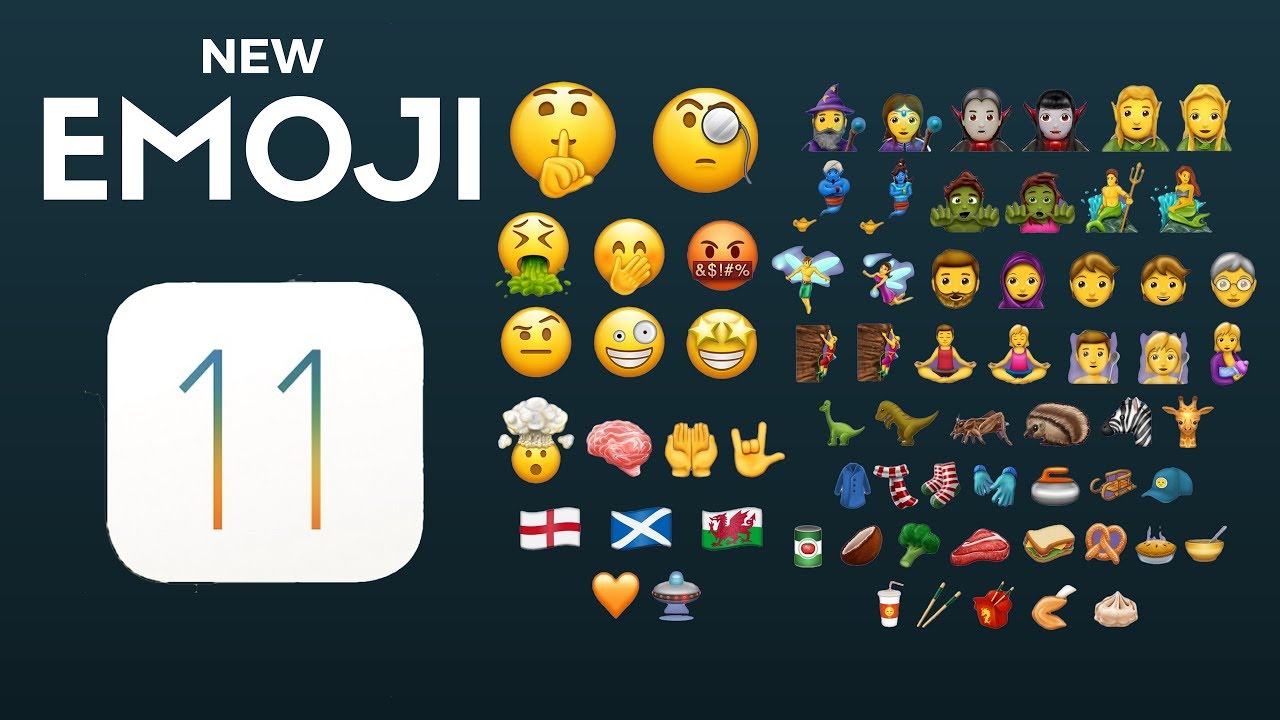
Although legendary tweak developer Poomsmart has left the jailbreak community, his tweaks continue to prove extremely useful. Here’s how you can use his EmojiPort jailbreak tweak to port them on iOS 10-10.2 firmware versions.
Reqquirments
A jailbroken iPhone, iPad, or iPod touch
iOS 10-10.2 firmware
Filza file manager
Internet connection
Porting iOS 11.1 beta 2 emojis to iOS 10
Step 1 Open Cydia.
Step 2 Go to the Sources tab.
Step 3 Tap Edit > Add and enter the URL of Poomsmart’s Cydia repository – poomsmart.github.io/repo
Step 4 Tap Done once you have added the repo.
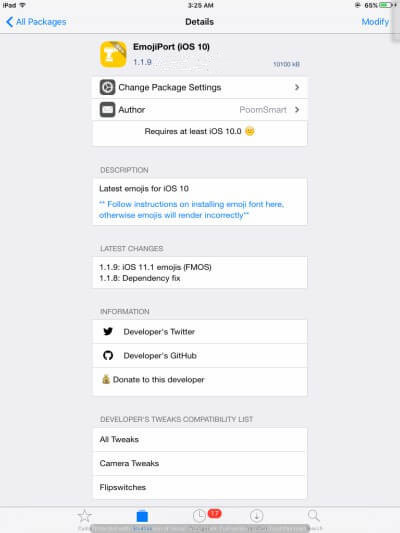
Step 5 Search for EmojiPort (iOS 10) tweak and install it on your device. Make sure the version is 1.1.9.
Step 6 Open Filza file manager and select [Root].
Step 7 Navigate to this location – /System/Library/Fonts/Core/
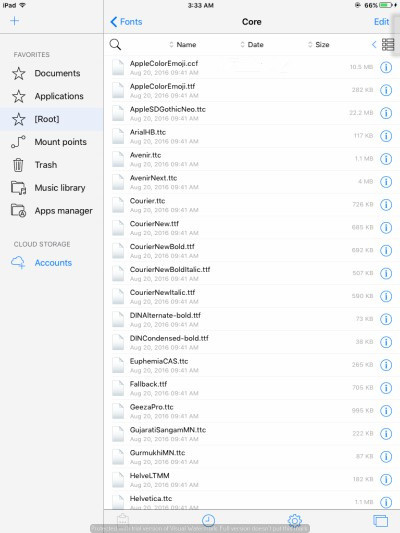
Step 8 Backup the following files to any location on your device –
AppleColorEmoji@2x.tcc
AppleCoreEmoji@2x.ccf
Step 9 Download this file from here.
Step 10 Transfer this new file to the location in step 7.
That’s all there’s to it! You can now check these new emojis out in your keyboard.










