 TUTORIALS
ControlCenterXI Brings the Much Requested iOS 11 Control Centre to iOS 10
 07/11/2017
 7158
7158
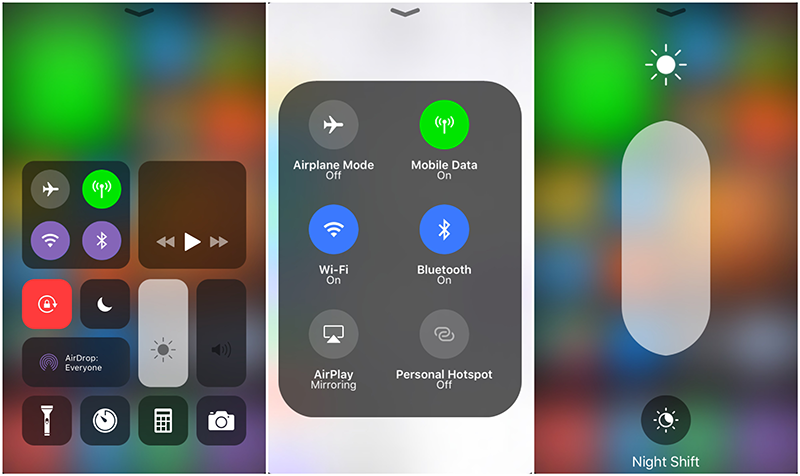
Bringing the new goodies to users.
ControlCenterXI, by LaughingQuoll, is a new tweak which is a part of the Eleven tweak bundle. For those who are unfamiliar with Eleven, it's a project that aims at bringing the iOS 11 changes and features to jailbroken iOS 10 devices. ControlCenterXI is the second Eleven tweak to be released, with LockScreenXI being the first one released yesterday.
The tweak mimics the iOS 11 control centre and adds some minor visual enhancements if you're into that. Aside from the default dark mode and blur behind the control centre, you can opt in for a lighter theme and a blur of your background instead of the content, which can be seen below.
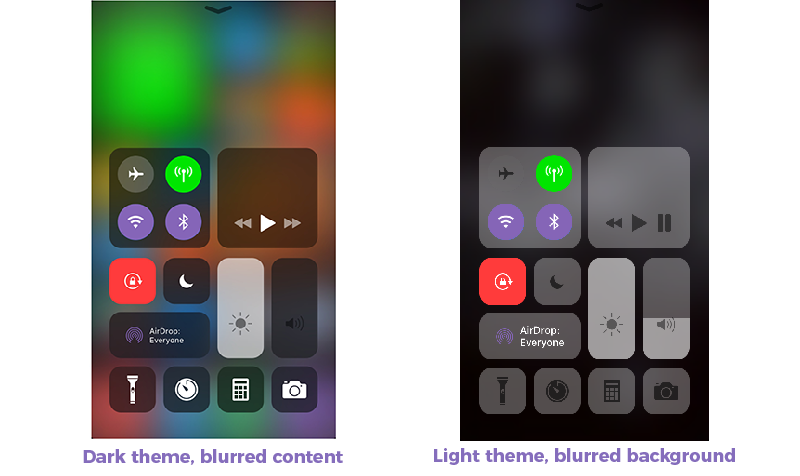
ControlCenterXI closely reassembles the iOS 11 control centre to even the smallest details, and it's fully compatible with the CC toggle for Noctis, another great tweak from the same developer.
The compatibility falls short with tweaks like FlipControlCenter, Polus or Horseshoe, however, you shouldn't need the last one at least if you're using this tweak, as the functionality of having a single page is already baked in.
ControlCenterXI also suffers from some performance issues, at least on our devices, with frame drops occurring while pulling up the control centre. The issue seems to be with the implementation of the blur but the developer is aware of the issue and is working on a fix which should be out sooner than later.
Just like LockScreenXI, the tweak is only compatible with iOS 1.0, and support for older jailbroken iOS versions is not planned so don't hold your breath. The "Eleven" project tweaks can be downloaded by following the links bellow.
Download ControlCenterXI for $1.50 from BigBoss










