 TUTORIALS
What’s iOS Jailbreaking?
 02/14/2017
 13401
13401
iOS Jailbreaking is the removing of software restrictions imposed by iOS, Apple’s mobile operating system, on devices running it through the use of software exploits. These devices are the iPhone, ipod, iPod touch, iPad, and the Apple TV2 and 4. Jailbreaking permits root access to the iOS file system, allowing the downloading and installation of additional applications, extensions, and themes that are unavailable through the official Apple App Store.
iOS jailbreaking dates back to the original iPhone in July 2007 and has continued into the present day. Apple has responded with updates to iOS patching exploits and with new hardware. Jailbreaking communities have not been legally threatened. The legal status of jailbreaking is unclear in most countries; while many prohibit tampering with digital locks, they tolerate jailbreaks that do not infringe on copyrights. In 2010, 2012, and 2015, the U.S. Copyright Office approved exemptions allowing smartphone users to jailbreak their devices.
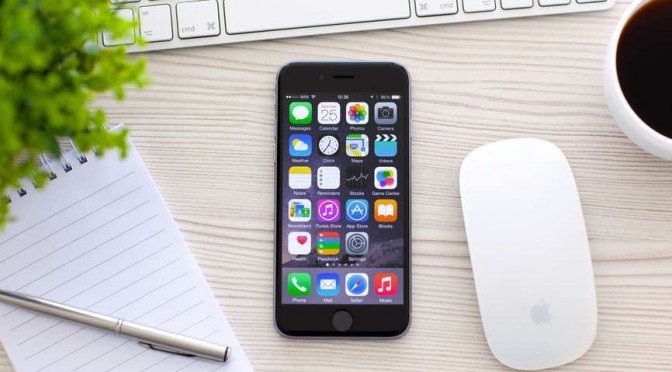
iOS jailbreaking is the process of removing software restrictions imposed by iOS, Apple Inc's operating system, on its devices including the iPhone, iPod touch, iPad, and second-generation Apple TV. Jailbreaking is done by using software exploits, and it permits root access to the iOS file system and manager, so applications, extensions, and themes unavailable through the official Apple App Store can be downloaded.
Jailbreaking in general means breaking the device out of its "jail", a metaphor used in Unix-style systems, for example in "FreeBSD jail". A jailbroken iPhone, iPod touch, or iPad running iOS can still use the App Store, iTunes, and other normal functions, such as making telephone calls. Furthermore, a jailbroken device can be reverted back to a standard 'jailed' device by restoring the device in DFU Mode.
Jailbreaking is a form of privilege escalation, and describes privilege escalation on devices by other manufacturers as well.










