
TUTORIALS

Tweak "GoAway" Customizes the "iPhone is Disabled" Text After Failed Passcode Attempts

04/14/2017

6924

Whenever your iPhone passcode is entered incorrectly too many times, a message eventually pops up that says“iPhone is disabled." This prevents the device from being used for a temporary period of time and is intended to deter people who try to gain unauthorized access to your device and personal information.


On the other hand, the stock message is pretty bland, and a new free jailbreak tweak called GoAway by iOS developer gilshahar7 paves the way to new ways of customization by letting you change the message and other information that gets displayed after too many wrong passcode attempts.
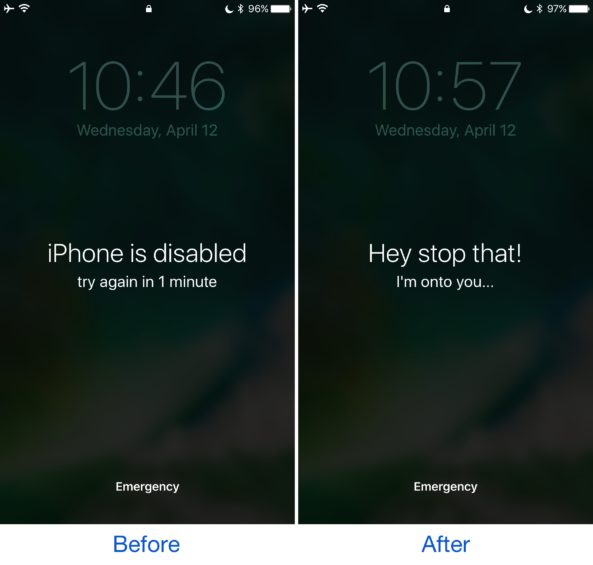

Tweak


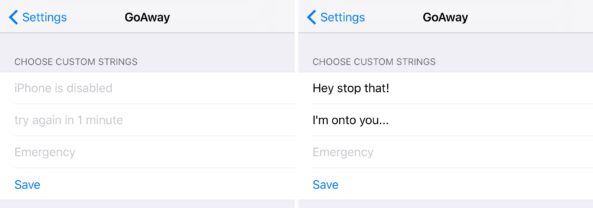
A preferences pane gets added to the Settings app after you install GoAway where you can configure custom text for up to three different text strings that appear on this screen:


Among the things you can modify are:


The iPhone is disabled text

The try again in one minute text

The emergency text

Tweak


Nonetheless, when you make your desired changes, you can tap on the Save button to apply them. You then need to respring your device. 


So why should you use GoAway? As the name implies, it's intended to fend off those annoying people that like to grab your phone when you're not looking and lock you out of your own device for a long period of time. 


If you want to try GoAway, it's available for free from Cydia's BigBoss repository and works on all jailbroken iOS 10 devices.


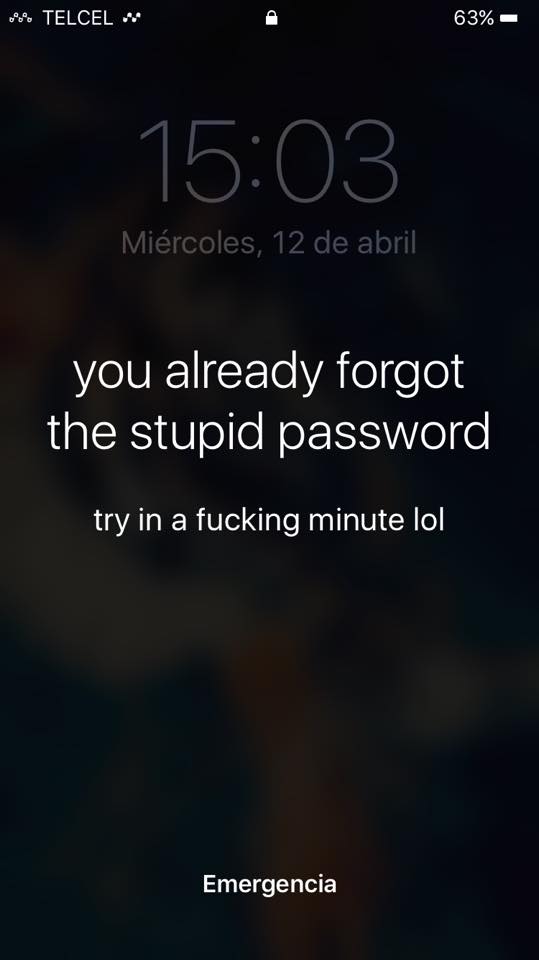
One of the 3uTools users sent us the screenshot of his iPhone like this:

Tweak

Windows
Mac OS
iOS
Linux
3uTools
Win 64-bit For this device
V9.01 2025-12-27
Download
Win 32-bit For this device
V9.01 2025-12-27
Download
3uTools
Intel Chip How to Identify Chip Type
V9.01 2025-12-31
Download
Apple Silicon
V9.01 2025-12-31
Download
How to Identify Chip Type
1.  Click the Apple icon in the top-left corner of the screen and select About This Mac.
2.  Check the Processor or Chip field to determine if it is "Intel" or "Apple".
Please use the 3uTools PC client to install the iOS client:
1、 Install either the Windows or Mac version of 3uTools on your computer
2、 Open the PC client and connect your device to the computer via USB cable
3、 After the connection is successful, wait for the computer to automatically install the mobile app for the device, or locate “Install Mobile App” on the computer and manually click to install.
3uTools
deb file
V3.01 2025-11-20
Download
rpm file
V3.01 2025-11-20
Download
Windows
Windows
iOS
iOS
Android
Android
TV
TV
3uAirPlayer
Win 64-bit For this device
V6.0.2 2025-11-19
Download
Win 32-bit For this device
V6.0.2 2025-11-19
Download
iOS Device Mirroring (No App Required)
1、 Install 3uAirPlayer on the Windows PC
2、 Open Control Center and select Screen Mirroring
3、 From the list, choose your PC to start mirroring
4、 Or connect your iOS device to the PC via USB to begin mirroring
Scan to get "3uAirPlayer" App
3uAirPlayer TV V1.0.18
2025-11-28
TV System Requirements: Android 7.0 or later
Download the TV installation package, copy it to a USB drive, insert it into your TV or set-top box, then select the file from the home screen to install.





